Change requests
The Change requests page lists proposed modifications to schedules and manifests. Use it to review what was requested, who requested it, and whether each request was approved, rejected, blocked, or is still pending.
Navigate to Operations > Change Requests.
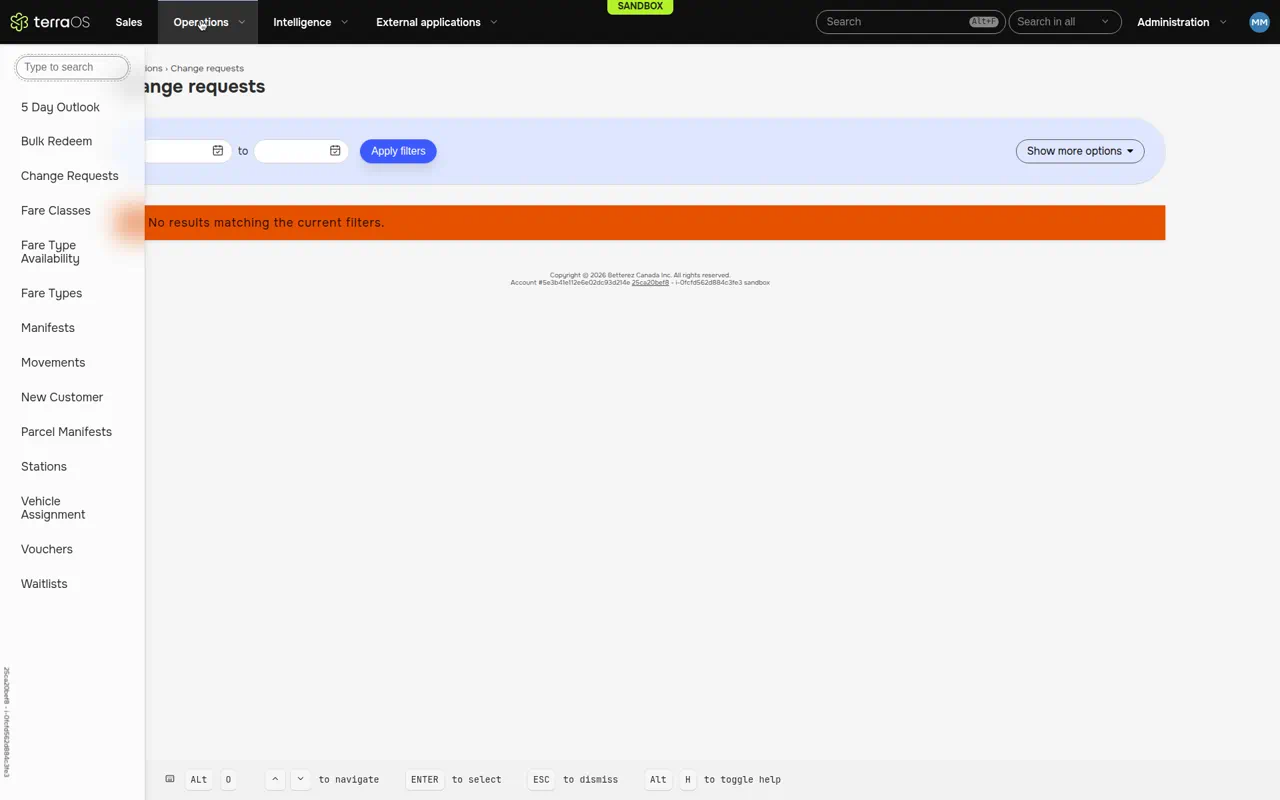
If you cannot see Change Requests in the Operations menu, contact Betterez Support to confirm the feature is enabled for your account and that your role has access.
When change requests are created
Change requests are created when a user modifies a schedule or a manifest and the account requires confirmation for those changes.
Configure this behavior in Admin > Sales inventory > Operation settings, under Modification to planned offer:
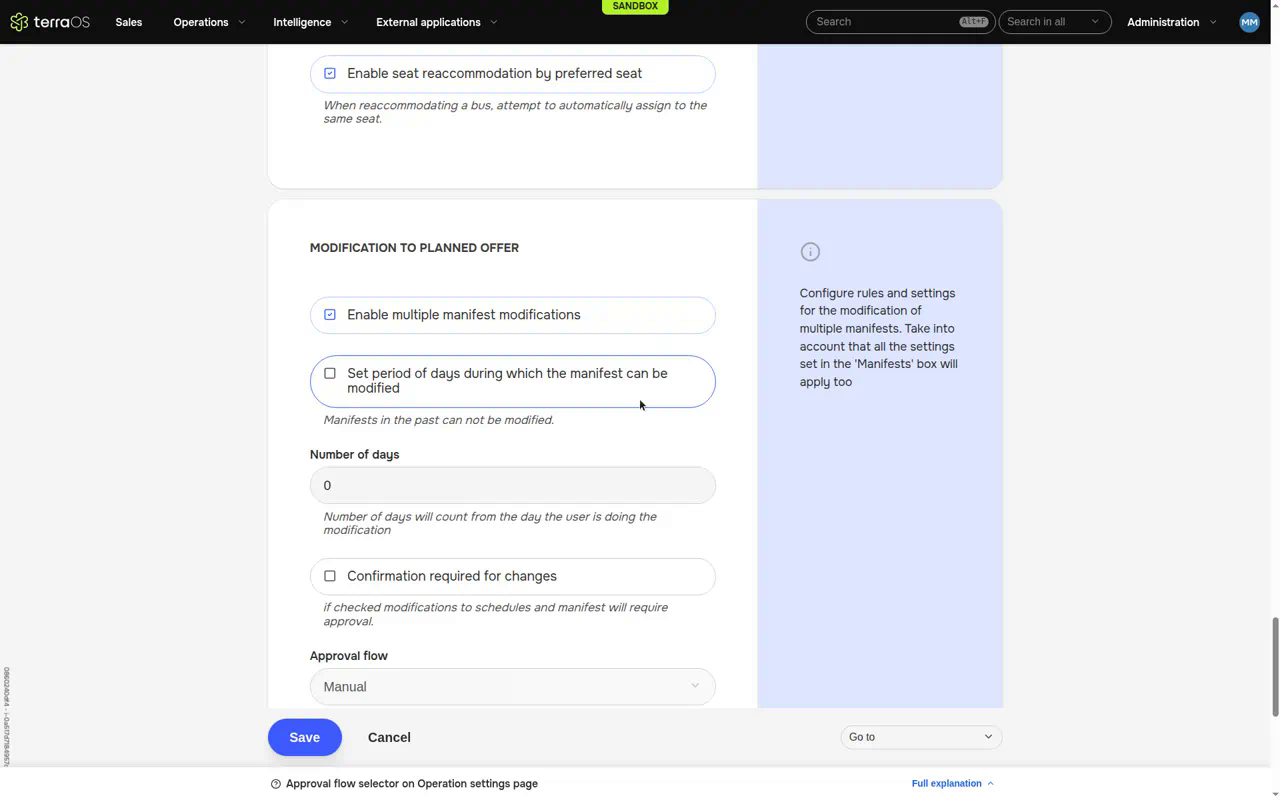
- Confirmation required for changes. When checked, modifications to schedules and manifests require approval and appear on the Change requests page.
- Approval flow. Controls how requests are processed. With the Manual flow, the change proposal is approved as soon as it is made.
Related settings on the same section also control multi-manifest edits, how far into the future a manifest can be modified, labels used when a cancellation is rejected or a trip is cut, and whether a trip can be cut while passengers are travelling. See Operation settings.
The Change requests page is a review and filter view. Creating the underlying schedule or manifest change is done from the Operations tools that edit schedules and manifests (for example Manifests or 5 Day Outlook), not from this page.
Filters
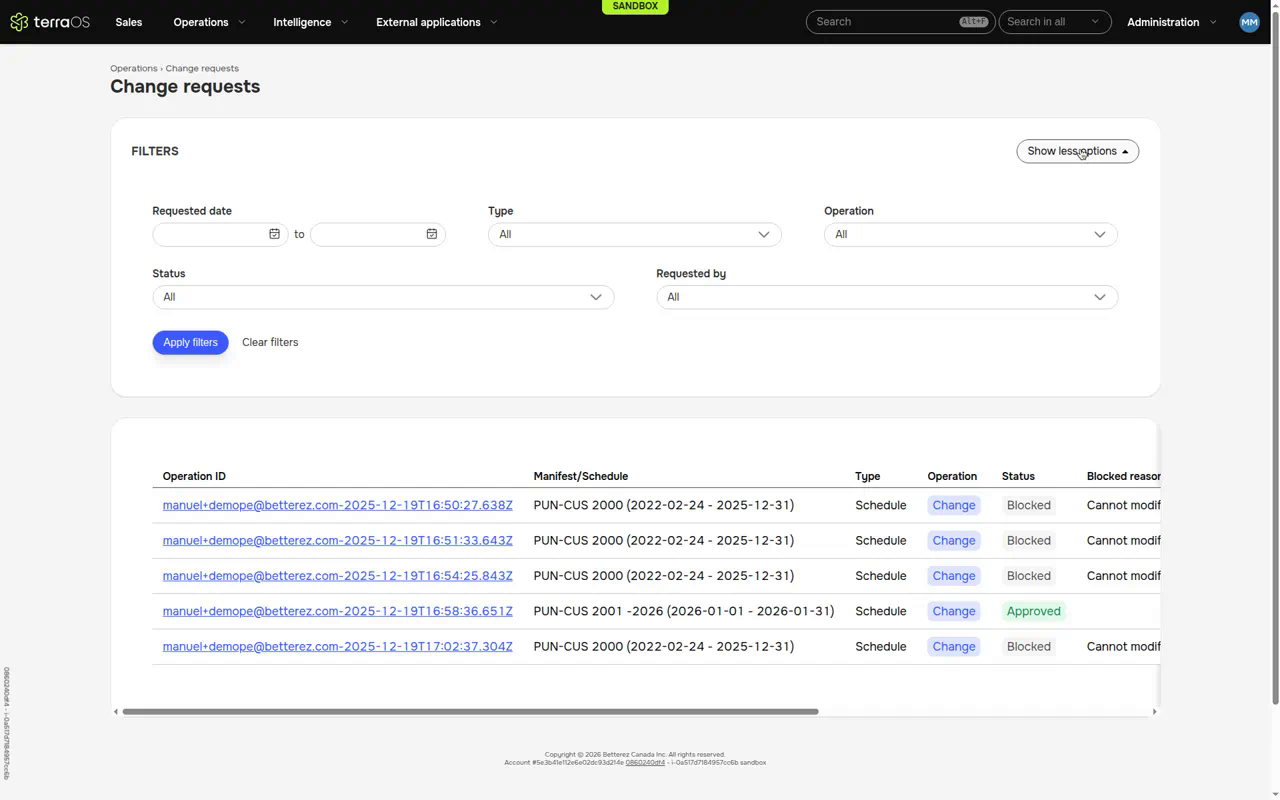
At the top of the page, use the filters to narrow the list. Click Show more options to expand the full filter panel (or Show less options to collapse it).
| Filter | Description |
|---|---|
| Requested date | Date range for when the change request was created (from / to). Use the calendar icons to pick dates. |
| Type | All, Manifest, or Schedule. |
| Operation | All, Cancellation, Change, or Cut. |
| Status | All, Pending, Approved, Rejected, or Blocked. |
| Requested by | All, or a specific user who created the request. |
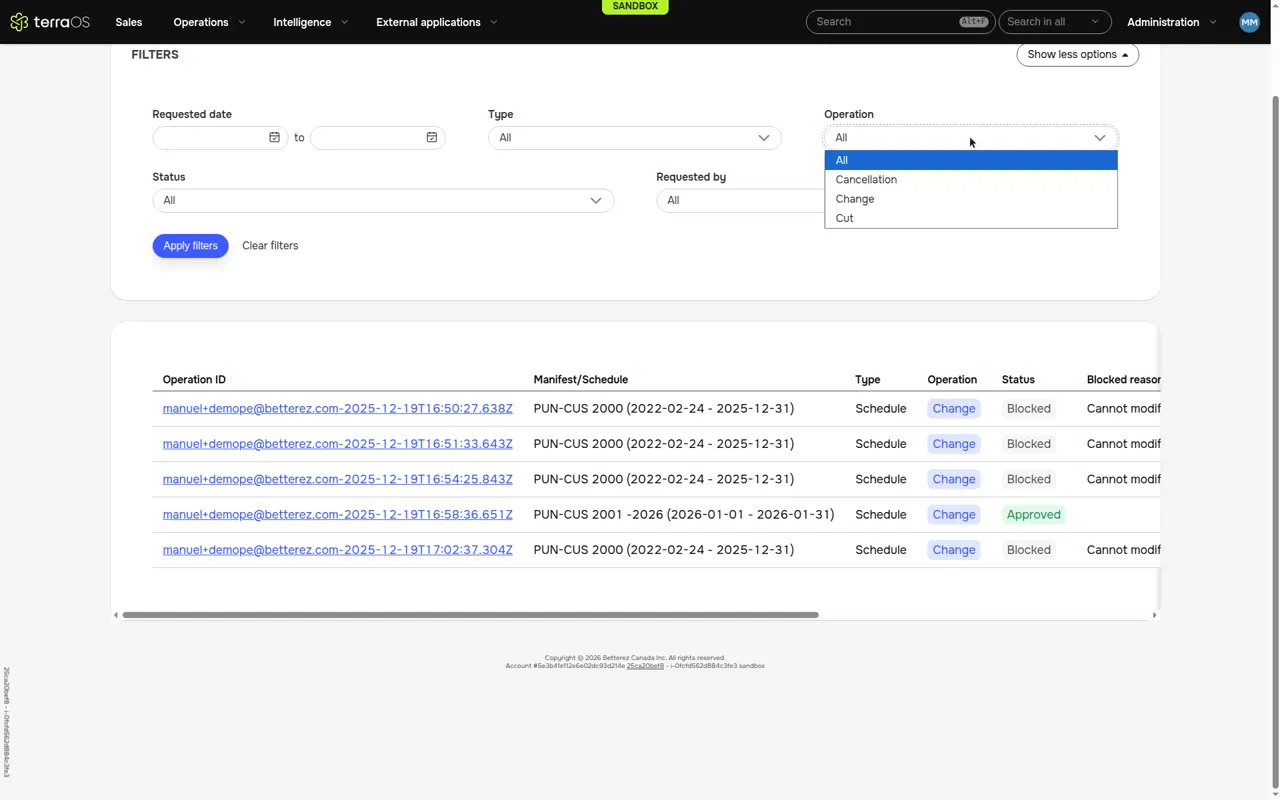
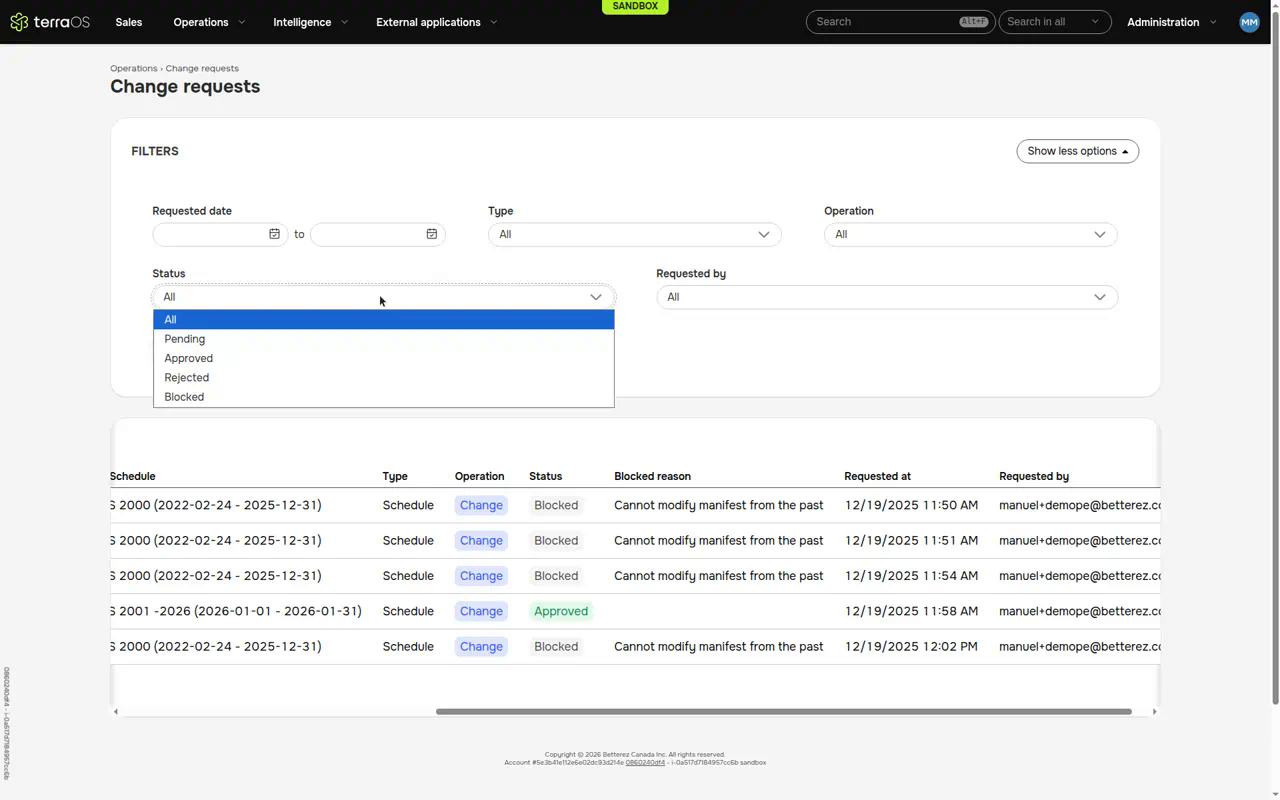
Click Apply filters to refresh the list. Click Clear filters to reset the filter fields in the panel.
If you opened a single operation by clicking an Operation ID (see below), the URL includes an operationId query parameter. Clear filters alone may not remove that selection; use the Change requests breadcrumb (or open the page again from the menu) to return to the full list.
List of change requests
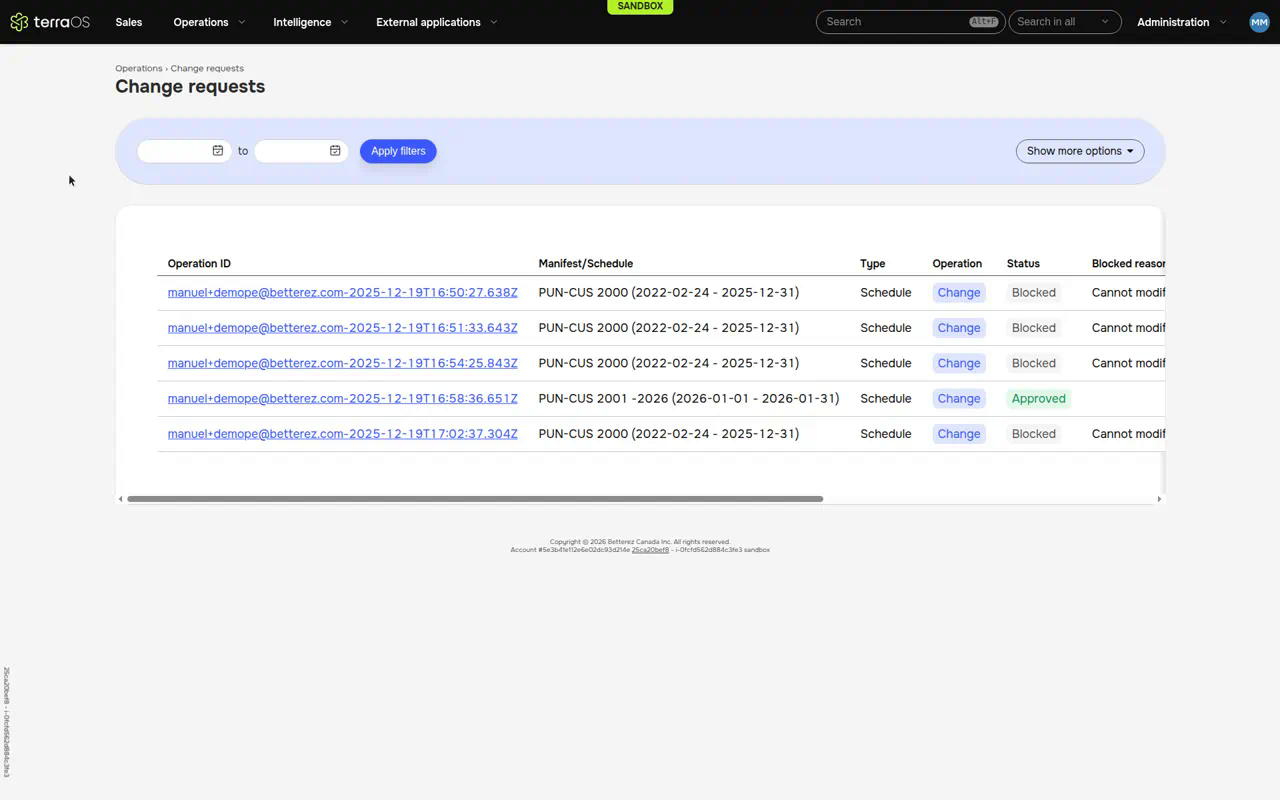
The table shows the change requests that match the current filters.
| Column | Description |
|---|---|
| Operation ID | Identifier that groups related change requests created together. Format is typically user-email-timestamp (ISO date/time). Clicking the link filters the list to that operation only and updates the URL with ?operationId=.... |
| Manifest/Schedule | Name or code of the affected schedule or manifest, often with a date range in parentheses. |
| Type | Schedule or Manifest. |
| Operation | The kind of change: Cancellation, Change, or Cut (shown as a badge). |
| Status | Current status of the request (see below). |
| Blocked reason | Explanation when the status is Blocked (for example, "Cannot modify manifest from the past"). Empty for non-blocked rows. |
| Requested at | Date and time when the request was created. Scroll horizontally if this column is off-screen. |
| Requested by | Email of the user who created the request. Scroll horizontally if this column is off-screen. |
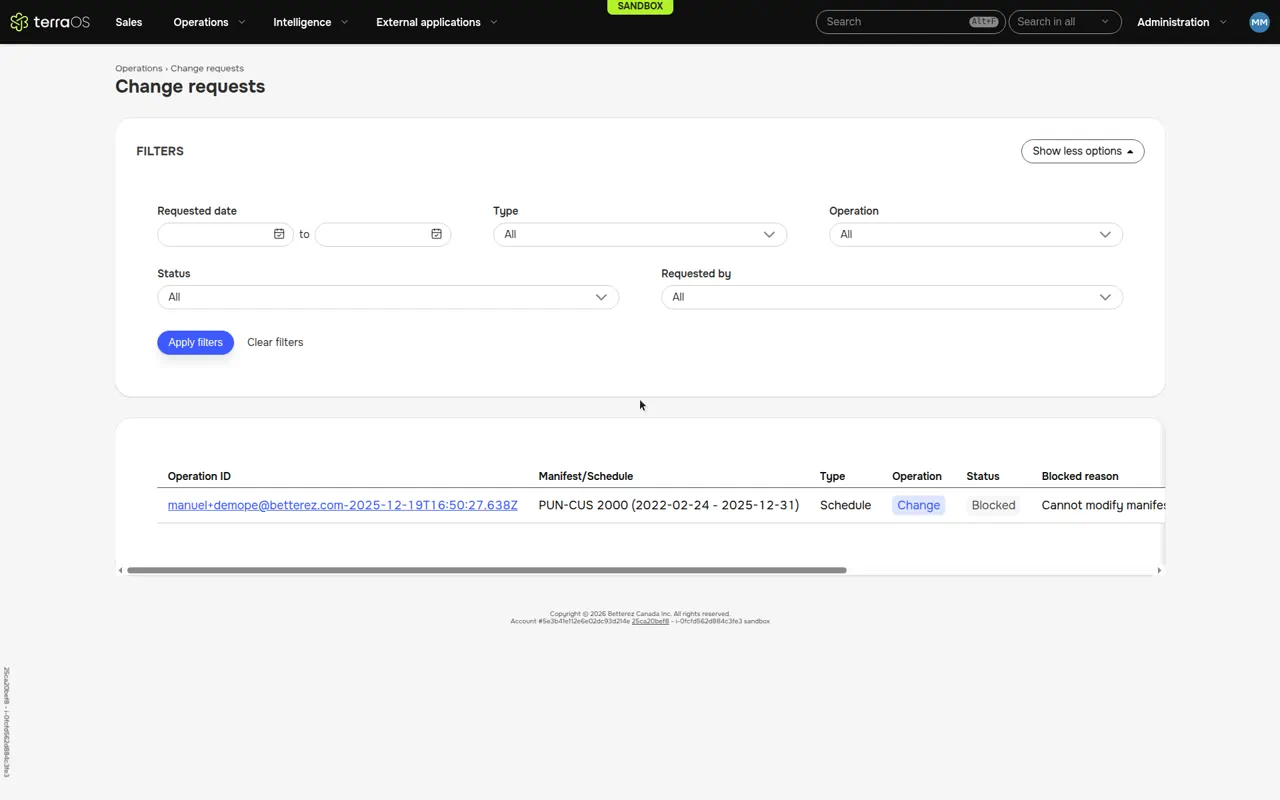
Status and Operation values are shown as badges for readability. They are informational; they do not open a detail screen. There is no create, edit, approve, or reject action on the row itself from this listing.
Statuses
| Status | Meaning |
|---|---|
| Pending | The request is waiting to be processed according to the configured approval flow. |
| Approved | The requested change was approved. |
| Rejected | The requested change was rejected. |
| Blocked | The system could not accept the change (validation or business rule). The Blocked reason column explains why. |
Empty results
If no change requests match the filters, the page shows a warning:
No results matching the current filters.
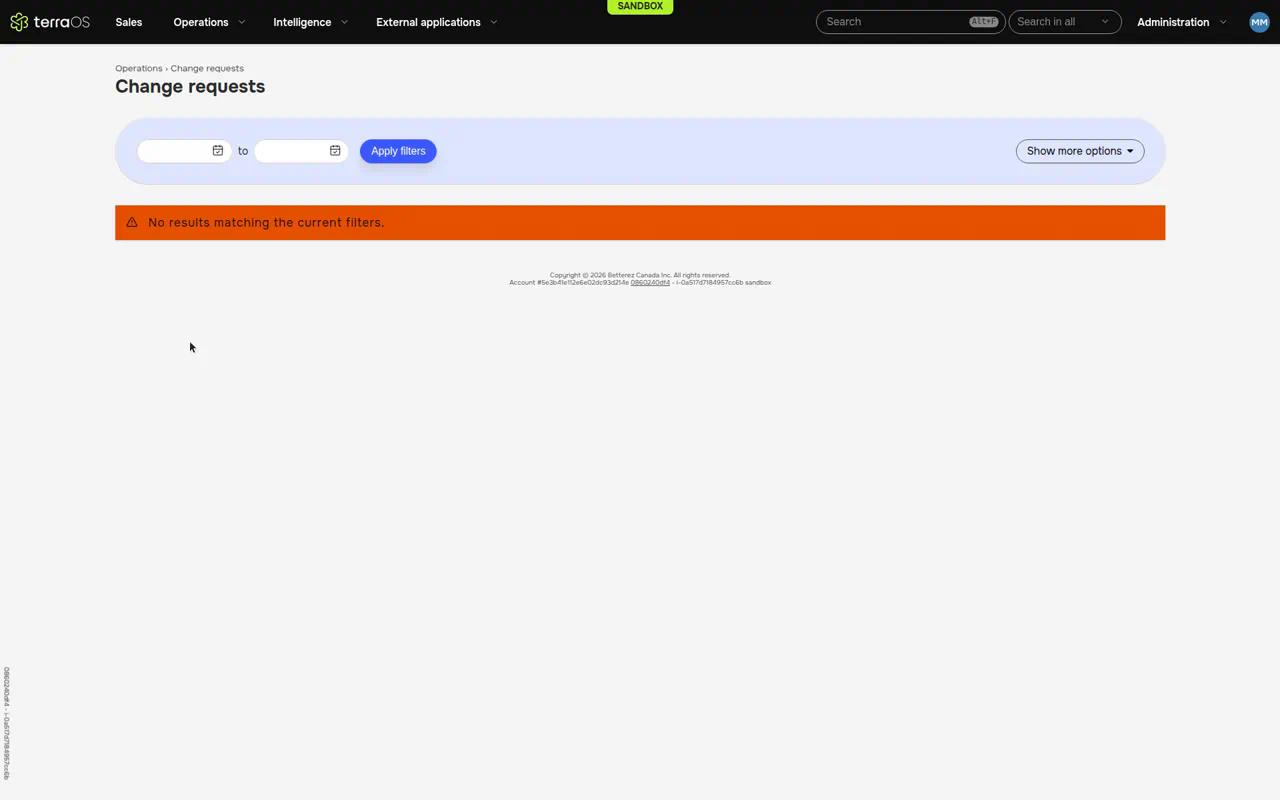
Adjust or clear the filters, or return via the Change requests breadcrumb if you filtered by Operation ID.