Page summary
Trusted untrusted users
Betterez untrusted or trusted users and trusted machines
In certain circumstances and for security reasons, an organization may wish to limit the use of the Betterez application to specific authorized devices. In such a case, the Betterez application has an additional security feature that allows for the classification of user roles and machine configuration for use. Following this idea, there are 3 important things to understand in this section:
This precondition of classifying user roles can be accomplished by working with a Betterez support analyst by sending an email support@betterez.com to add/remove the appropriate permissions from a particular user role to make the role trusted or untrusted.
After the user roles have been defined and updated, it is important to understand the user journey of both types of user.
Untrusted user
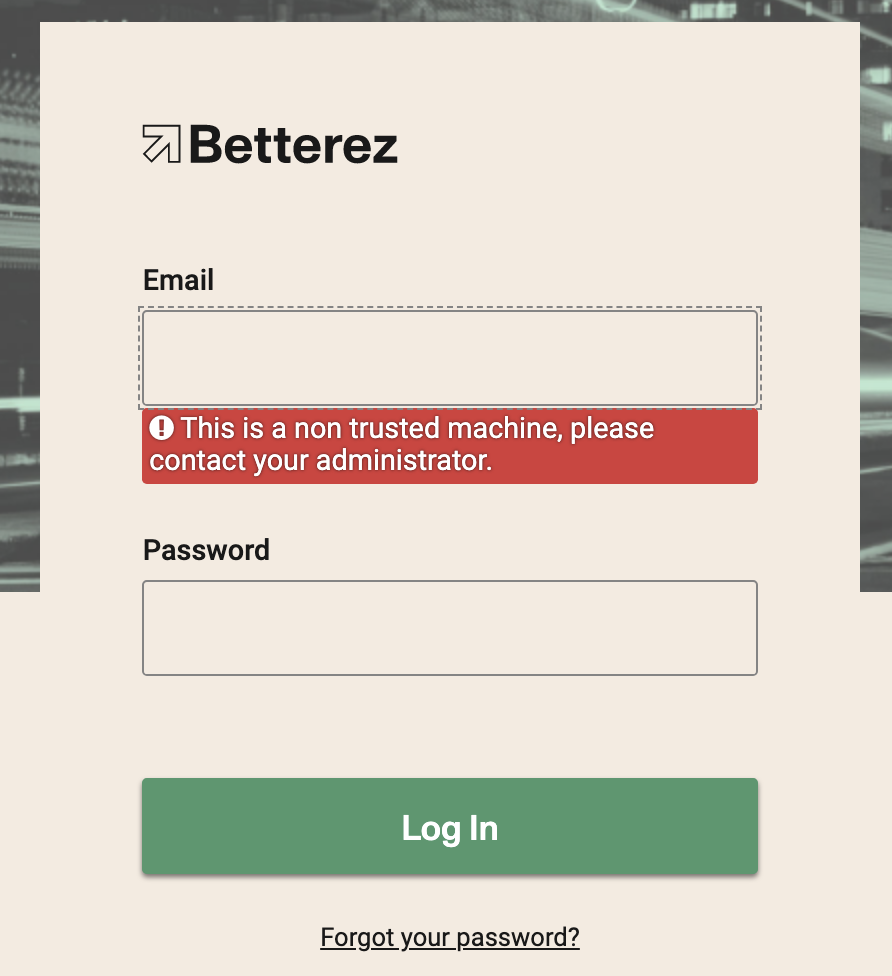
For this type of user to log in, they have to do so on a machine configured as a "trusted machine." Otherwise, they will not be able to access the Betterez APP services. In addition, for the access to be successful, the trusted machine must have the same location configured as the location of the non-trusted user's shift. In any other case, the login will fail.
Trusted user
They are simply all users, except those who are "Untrusted users."
Trusted machines
Trusted machines are configured through trusted users, by going to admin > trust-machine
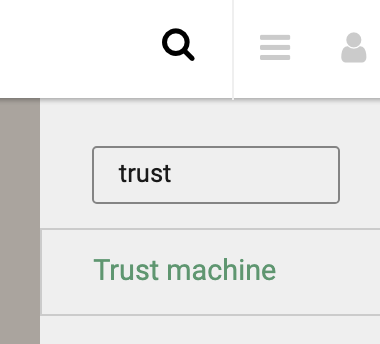
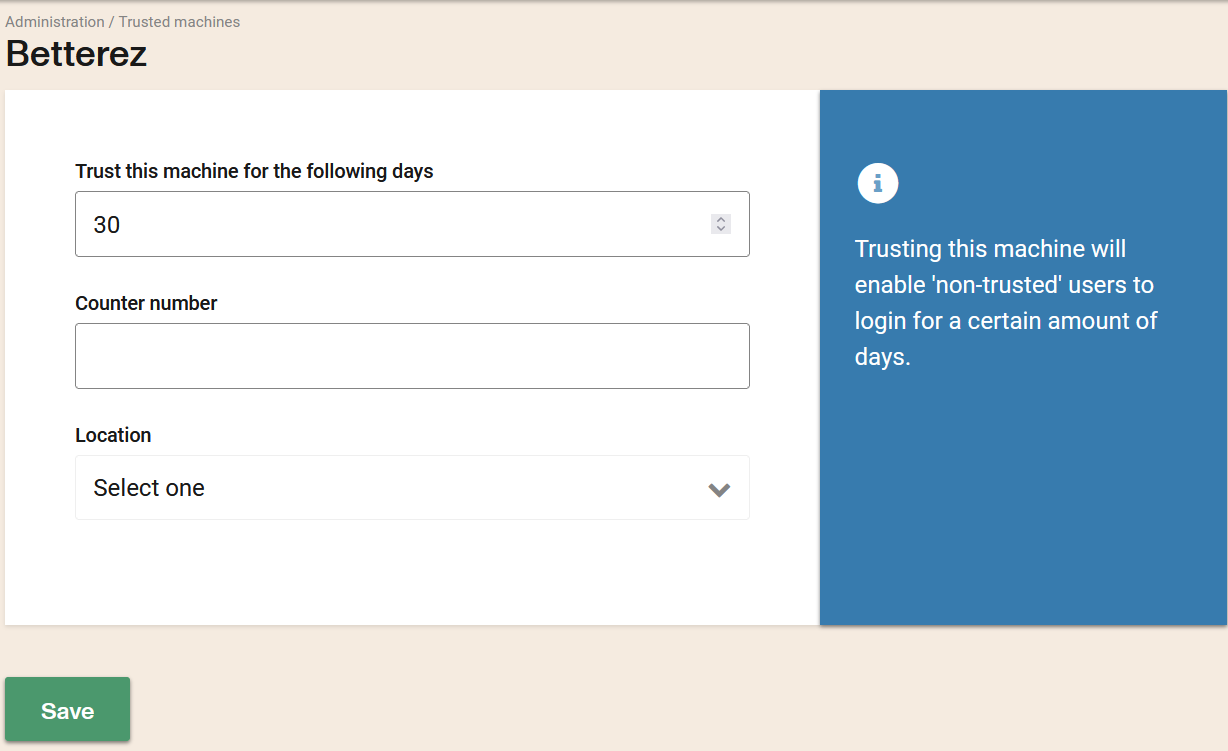
There you will be shown a page with the following configuration options:
Trust this machine for the following days: Number of days the trusted machine will remain active.
Counter number: An identifier for the machine (e.g. Counter 1, 2, 3 when several machines operate in the same location).
Location: The station or location where the trusted machine will be used.
Permissions restrictions (radio options):
- No restriction: Users accessing through that machine have no extra restrictions. Contact support for specific permissions.
- Sales only: Users who access through that machine can only sell; other role-based features are restricted. Ask support for the exact permissions.
- No Sales Allowed: Users accessing through that machine cannot sell but can use other functions according to their role. Contact support for specific permissions.
Browser fingerprint (checkbox, off by default): When enabled, the app captures a browser fingerprint when you save the trusted machine. The fingerprint is stored with the trusted machine and in the btrz-trusted cookie. For non-trusted users, login will only succeed from a browser whose fingerprint matches the one stored for that trusted machine; logging in from a different browser or device will be rejected (NOT_TRUSTED). Leave unchecked if you do not want to bind the trusted machine to a specific browser fingerprint.
Trusted-machine cookies (such as btrz-trusted) are encrypted for security.
Login and browser fingerprint
If your account or user has multi-factor authentication (MFA) enabled, you will be asked for a one-time code from an authenticator app (e.g. Google Authenticator) after entering your password. For the full sign-in flow and setup, see Signing in with MFA.
On every sign-in, the Betterez app may capture a browser fingerprint (when available) and send it with the login request. This fingerprint is stored in the user's login attempts (audit log) for security and support purposes. It does not change who can log in; it only adds an identifier to each login record. The optional Browser fingerprint checkbox on the trusted-machine page is separate: that option ties the trusted machine to a specific browser for non-trusted users, as described above.
Users can select (or be assigned) one or more "default" shift locations on the user configuration page. If a user has default shift locations assigned to him, he will be able to select one of the locations that appears but if he selects a location other than the trusted machine location when trying to make a sale he will get a message: Can't sell on this (Location trusted Machine) since you have a shift opened in (Location Shift) the two locations must match.
