Page summary
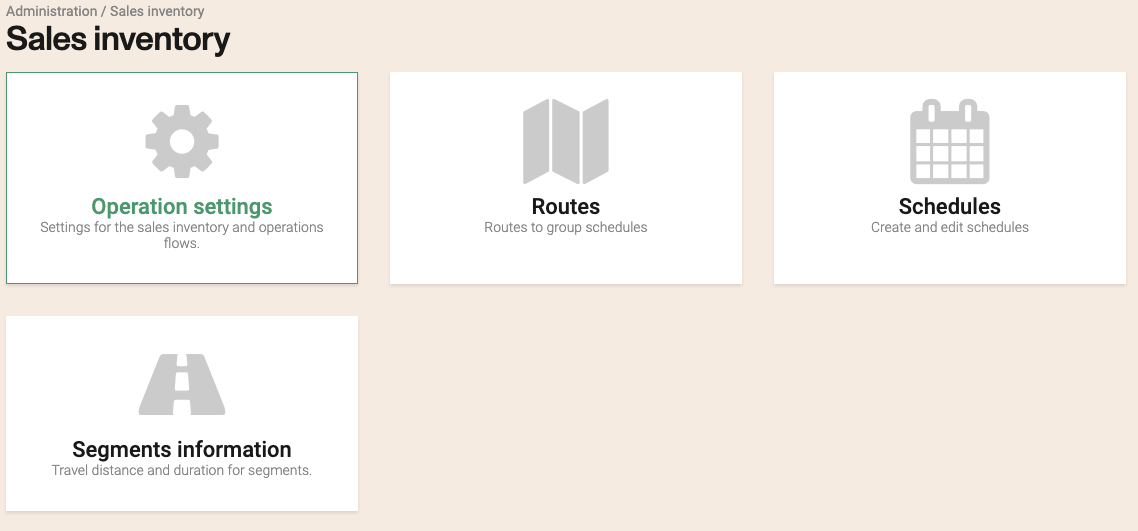
Sales inventory
The Sales inventory section contains all the areas and settings used to prepare the offert(s).
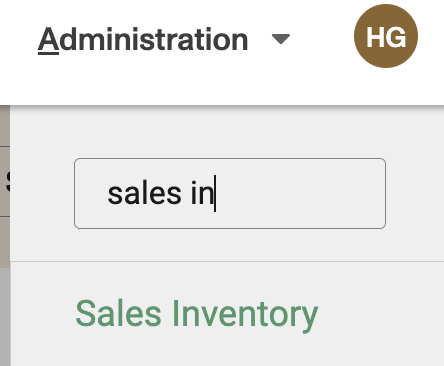
You can access the Sales inventory page in the Admin -> Sales inventory menu.

From the main page you can access the subsections.

Multiproduct
This feature allows the system to connect different products (such as a Bus and a Train) into a single travel itinerary, consolidating search results and pricing. It can be used to connect any product types.
Route Logic:
There must be existing routes for both products that share a connection point (e.g., Station B) to allow travel from Point A to Point C via Point B.

Select multi-product setting
*It requires to enable permissions
Product Mapping (Defining the Connection)

- Select the products you wish to connect (e.g., mapping "Bus" to "Train").
- While complex combinations are possible, adding more combinations increases the complexity of the configuration and maintenance.
Station Mapping

- Define the station where the transfer will occur for each product.
- You must select the specific station for the first product (e.g., Bus Terminal Cochrane) and the connecting station for the second product (e.g., Train Station Cochrane).
- These can be the exact same station or different physical terminals depending on the operation.
Fares Mapping

- Select which passenger types are eligible for this connection (e.g., Adult, Senior).
Fare Class Mapping

- Fare Classes: Map the specific classes between the two products. For example, you can map a "Standard" class on the bus to a "Fine" (or premium) class on the train.
Note on Mapping: If you map a "Flexible" class from one product to a "Standard" class in another, the system may currently display the entire trip as "Flexible," so this should be reviewed carefully.
Sales Flow

Since the product mapping first leg was configured with “Bus”. The system will consider only the product line “Bus” for multiproduct booking.
- You can configure a second mapping with “Train” as a first leg to use this product for multiproduct booking.
When a user searches for a route involving a connection (e.g., Berry to Moosonee), the system searches the first leg (Berry to Cochrane) and the second leg (Cochrane to Moosonee) and combines them.

The system sums the prices of both individual legs to provide the total cost.

A single transaction is generated, but the system issues two separate tickets (one for each product).

Important considerations
- Wait Time Restrictions: The maximum allowed wait time between connections (e.g., 240 minutes) is configured at the Account Level, not within the Multiproduct settings. If the wait time exceeds this limit, the result will not show.
- Reverse Routes: For round trips or reverse searches to work, the configuration must be set up for the return direction as well.
- Schedule Coordination: Ensure that the arrival time of the first leg and the departure time of the second leg align. If the schedules do not allow for a valid connection, no results will appear.