Page summary
- Details and UI
- Actions from the UI
- Roles and permissions for Ticket details
- Flexx Pass details
- Other detail sections
- Other detail sections: Adapting to the Pricing Scheme
- Ticket Status
- Payment related status
- Redemption / Check in status
- Flex Pass redemption display
- Ticket operation statuses
- Full list of possible ticket statuses
Ticket Details
Details and UI
When a reservation ticket is purchased and the payment is completed in the platform, then you have an available ticket ready to use.
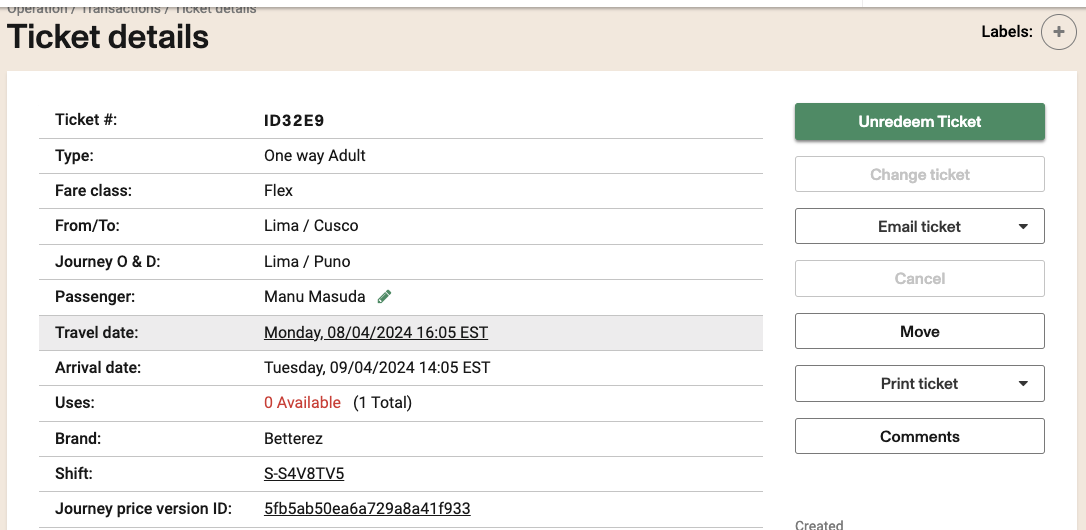
The ticket details page has all the basic information on the ticket on the table on the left. You can also click on some parameters to navigate to other pages. For instance, clicking on the travel date will take you to the manifest where the ticket is located. You can access the agent's shift and the JP rule applied for this ticket's pricing as well.
Ticket Status can be affected by payments, post-sales operations, redemptions, or time-based rules.
Actions from the UI
The right side buttons let you perform operations after the purchase. These buttons can be enabled or disabled using roles and permissions, so only the allowed collaborators have access to certain actions.
Roles and permissions for Ticket details
- /tickets (update) enables the Redeem, change, and cancel buttons (but won't enable them)
- /tickets/redeem (update) enables the redeem action
- /tickets/redeem (delete) enables the Un-redeem action (for redeemed tickets only)
- /sales-change (create) enables change
- /operations/movements enables the Move button
- /tickets/transactions/cancel (create) enables cancel
- /tickets/edit The green pencil icon next to the passenger name lets you modify the passenger's name. permission needs to be enabled for this.
Flexx Pass details
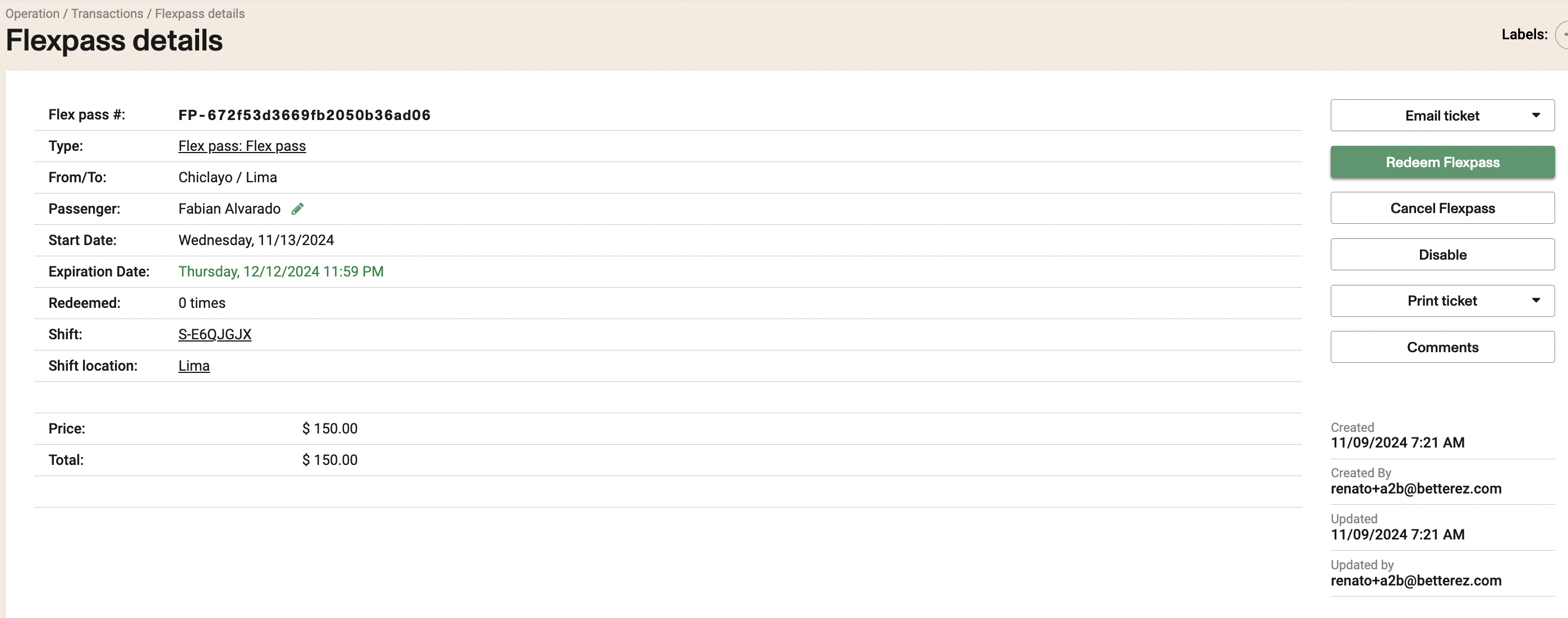
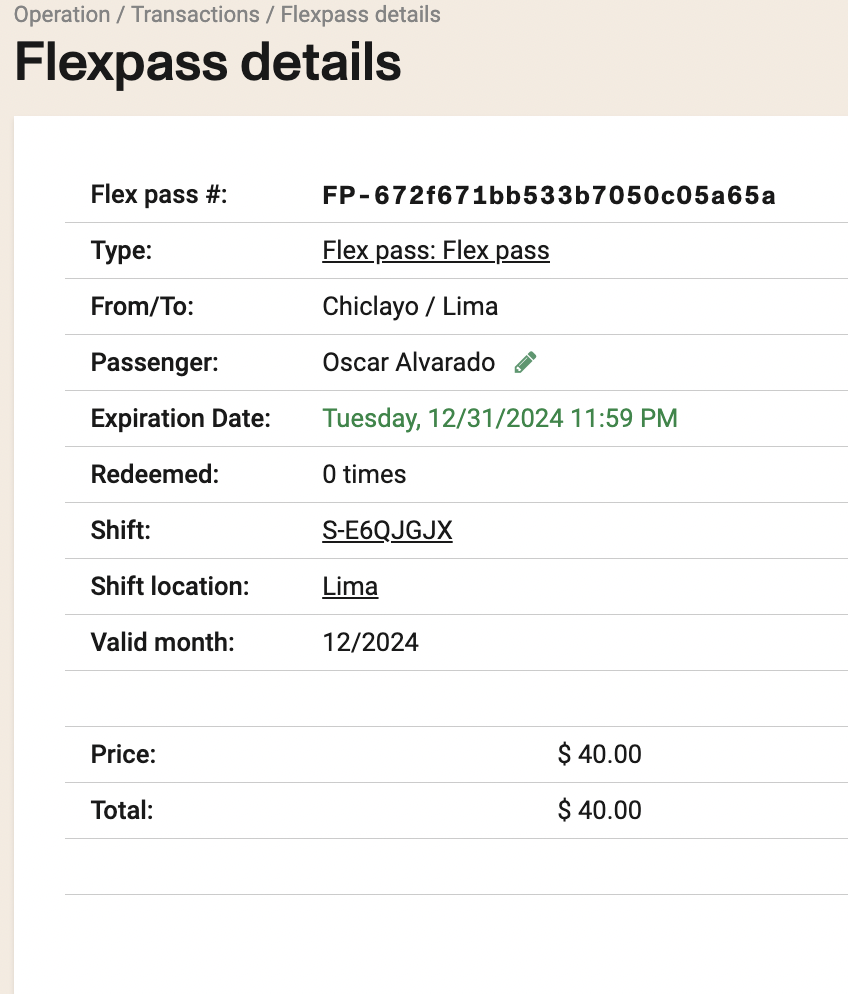
For flex passes you will have a similar display as Ticket Details, but with the additional options of redeem and disable the FP. Note that the redemption button will still depend on the /tickets permission
Other detail sections
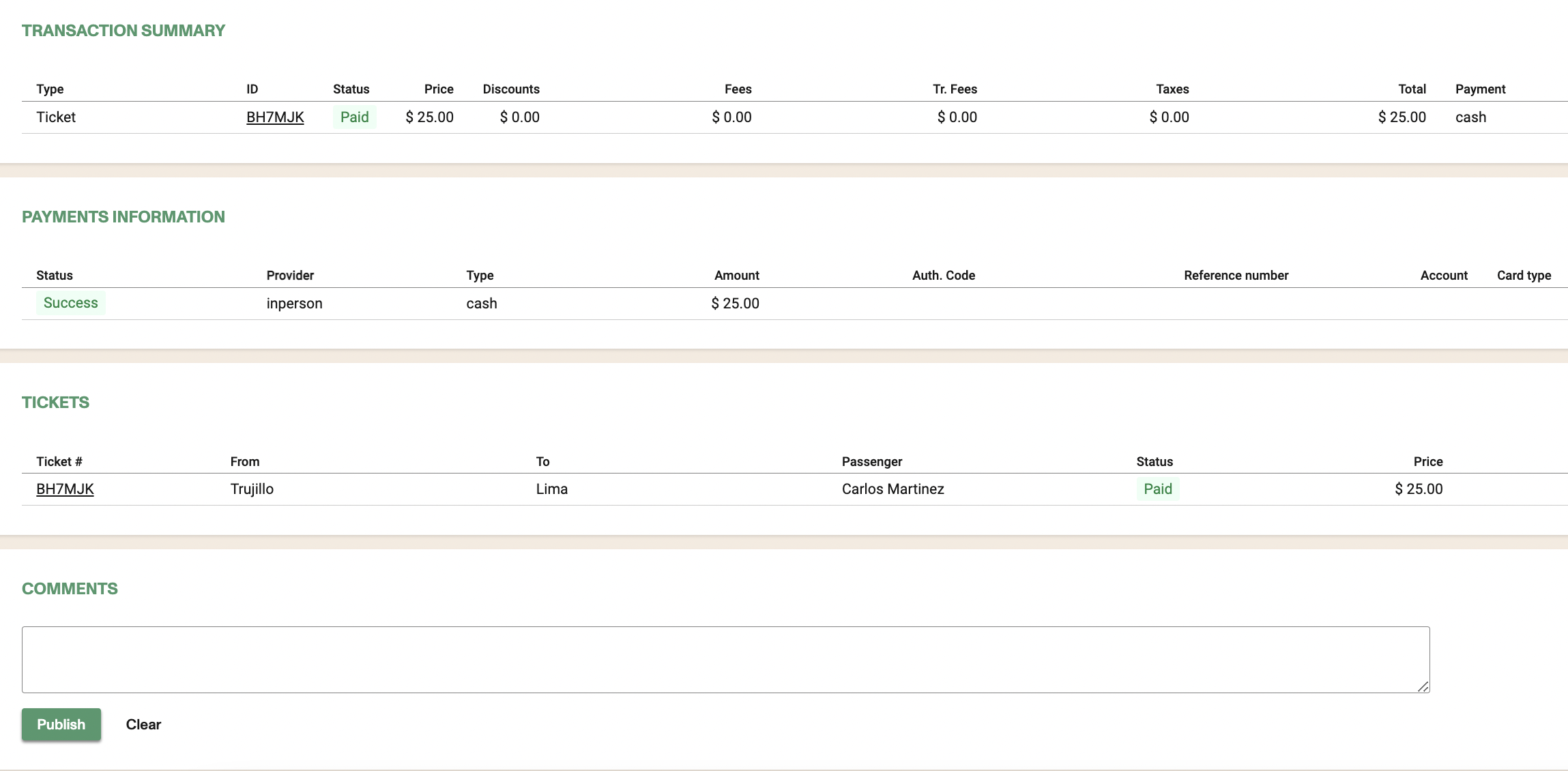
Above transactions and ticket details, there are other sections that add mayor information according to the product type.
In case of Reservation products we have:
- TRANSACTION SUMMARY
- PAYMENTS INFORMATION
- TICKETS
- COMMENTS
For Parcels, we have one more section:
- PARCEL (tracking status)

Other detail sections: Adapting to the Pricing Scheme
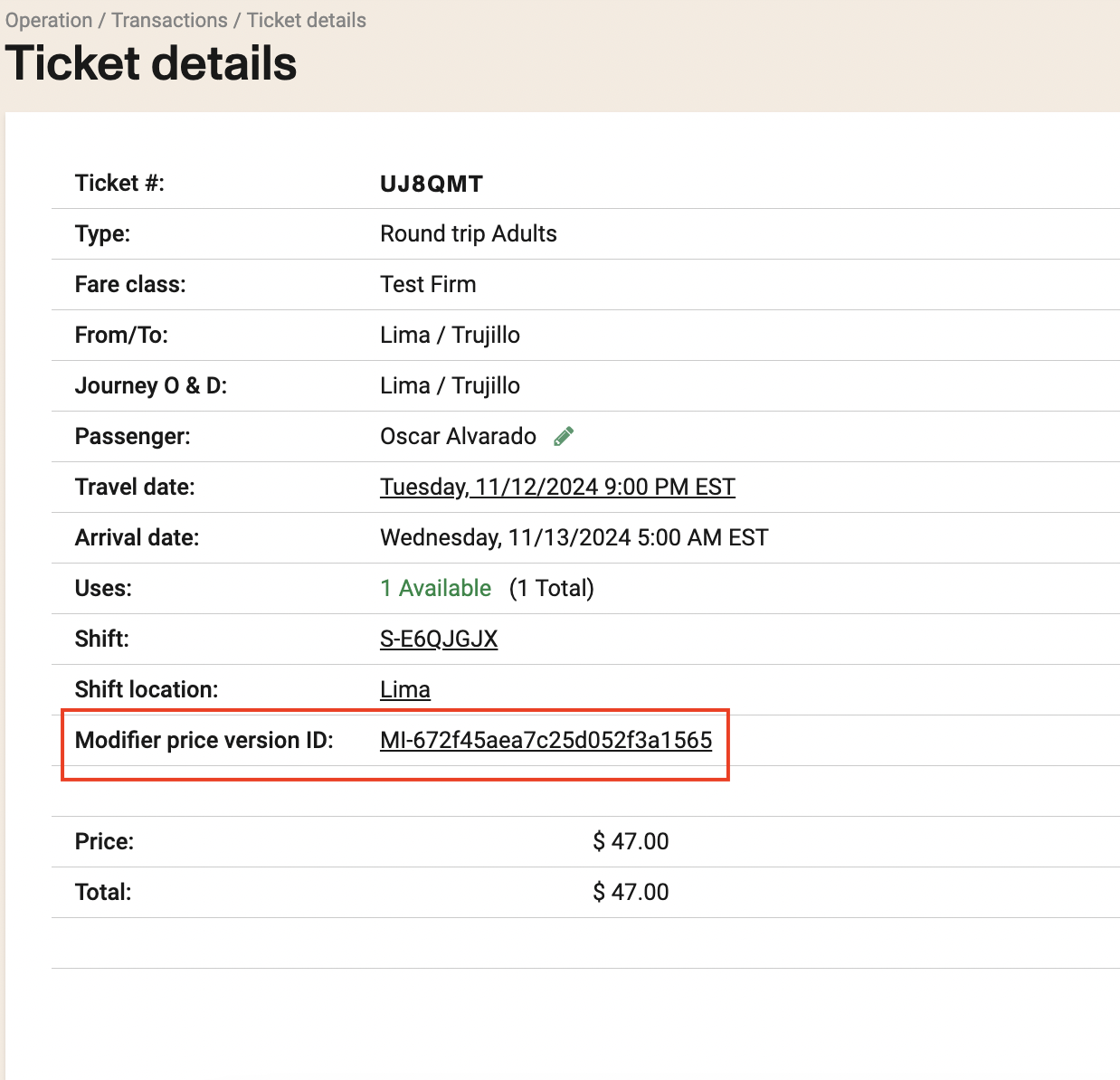
For Market pricing:
In case you are using MP scheme and using modifiers, you will see a section with the Modifier price version ID: link so you can identify modifier set up applied to the ticket.
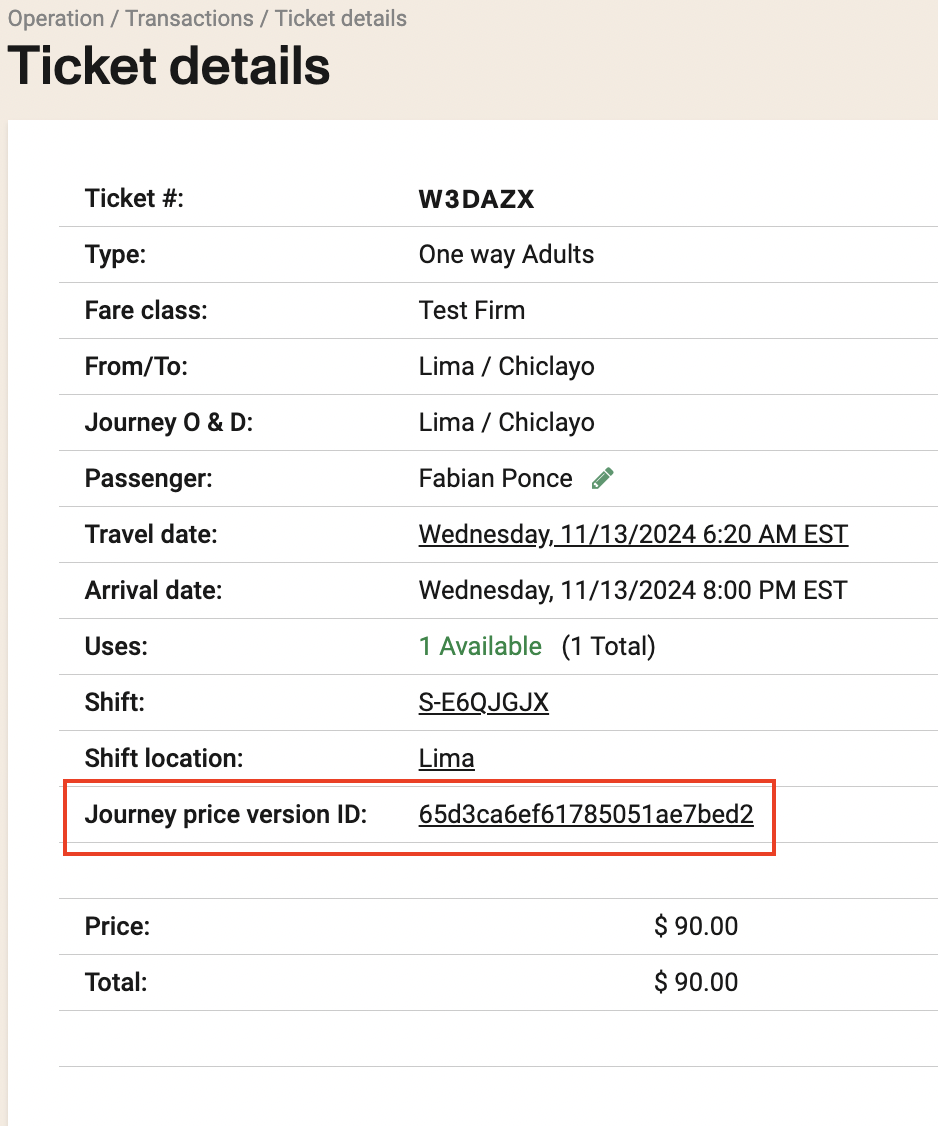
For Journey pricing:
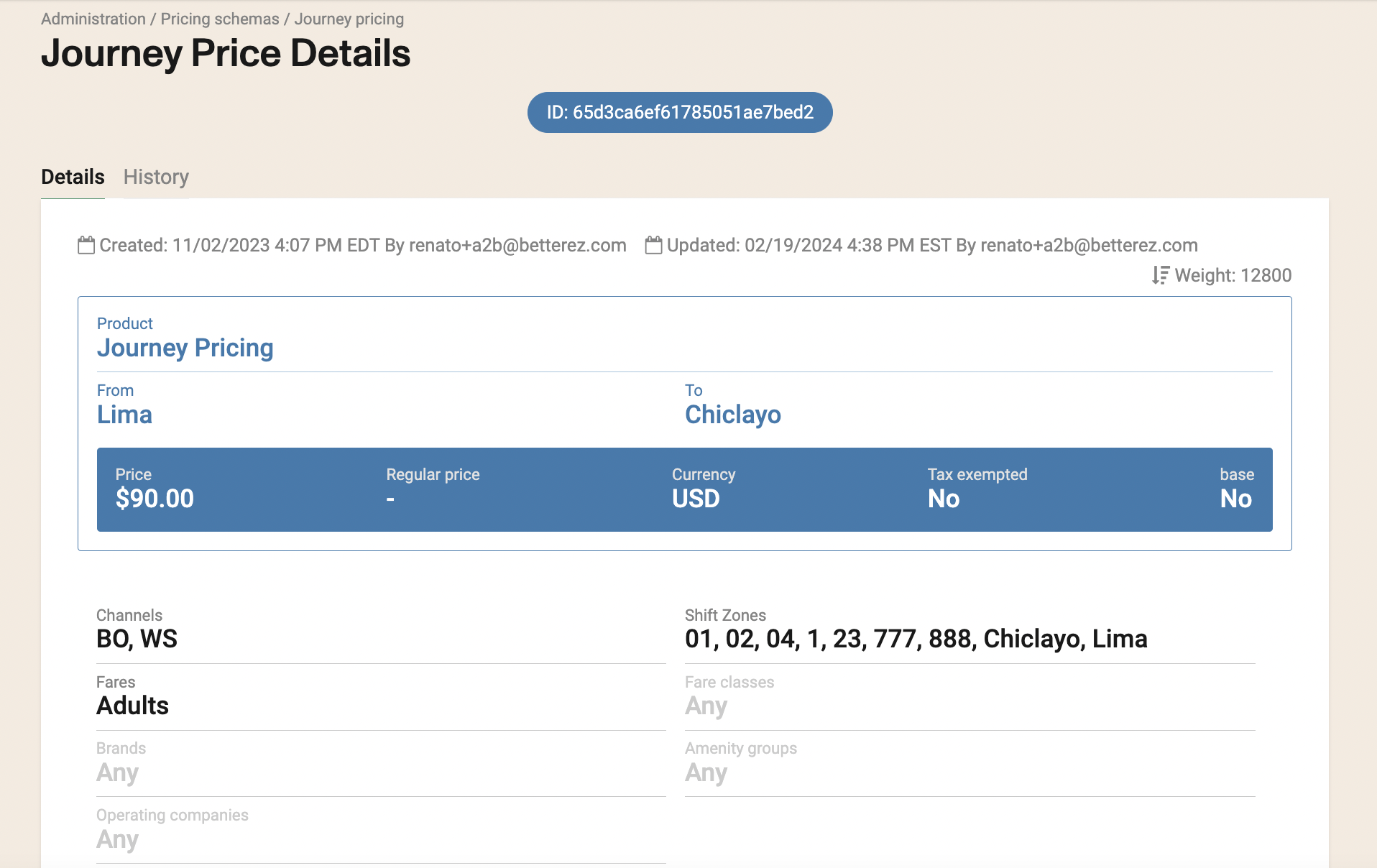
In case you are using JP scheme, you will see a section with the Journey price version ID: link to take you to the JP rule full details of the ticket.
JP ID link:
Ticket Status
Payment related status
By default, a completed transaction generates paid tickets. This status let's you use the ticket while it is valid.
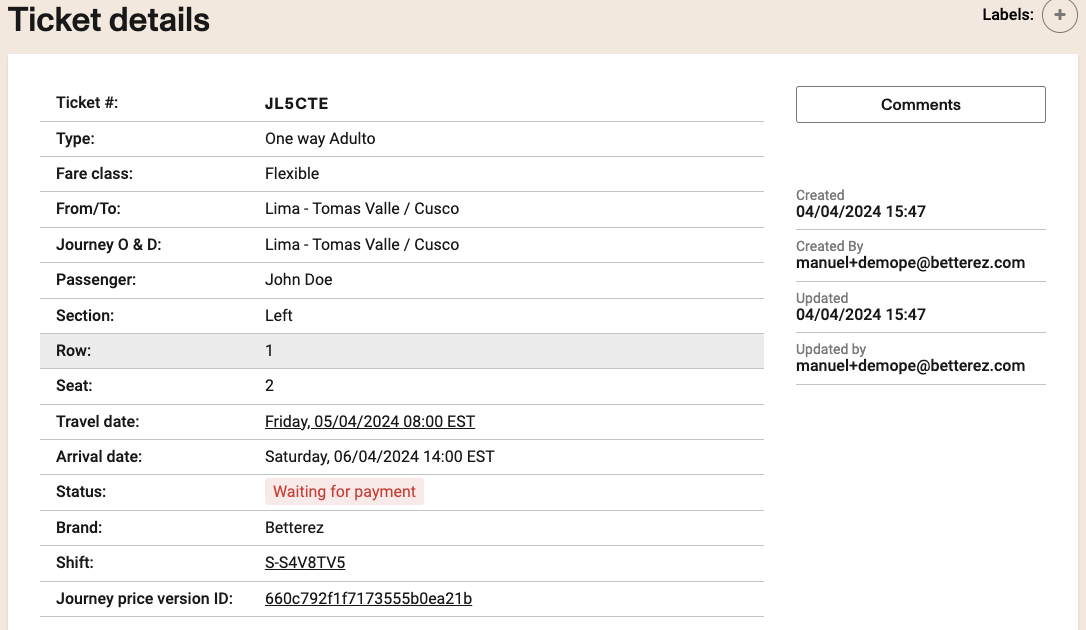
If your account uses some type of deferred payments, the tickets would be created with a "Waiting for payment" status.
This will remain until the payment is completed or it expires. Status will be updated accordingly. While the ticket has a status different than "paid", no actions can be performed on the ticket.
Typically, payments are a commitment between the customer and the company, so payment should always be completed or expire. In the event you need to cancel the transaction within the process, we recommend completing the payment, then cancelling the ticket.
Redemption / Check in status
According to your Product Line configuration, you will have a number of redemptions available for use on each ticket.
This number is shown in the "Uses" field.
Redemption can be done from the Ticket details page, from the Manifest, or by scanning the QR code using the Driver's app.
Once the ticket is out of uses, operations will be greyed out, but all info will be available for later review. You can also manually "unredeem" the ticker directly from this section.
Flex Pass redemption display
If in the configuration of the product the "Redeemable in advance" option is enabled, the FP will not display the "Redeem" button, but will qlways show the redeemed times on the details section
Additionally, a ticket can be tagged as a "No Show" from the manifest.
This option would be used to liberate the seat of a no-show passenger, so it can be sold later.
Once a ticket is tagged as a No show, the ticket is removed from the manifest and the Check in status will be updated. A ticket with this status can still be Moved, Changed or cancelled.
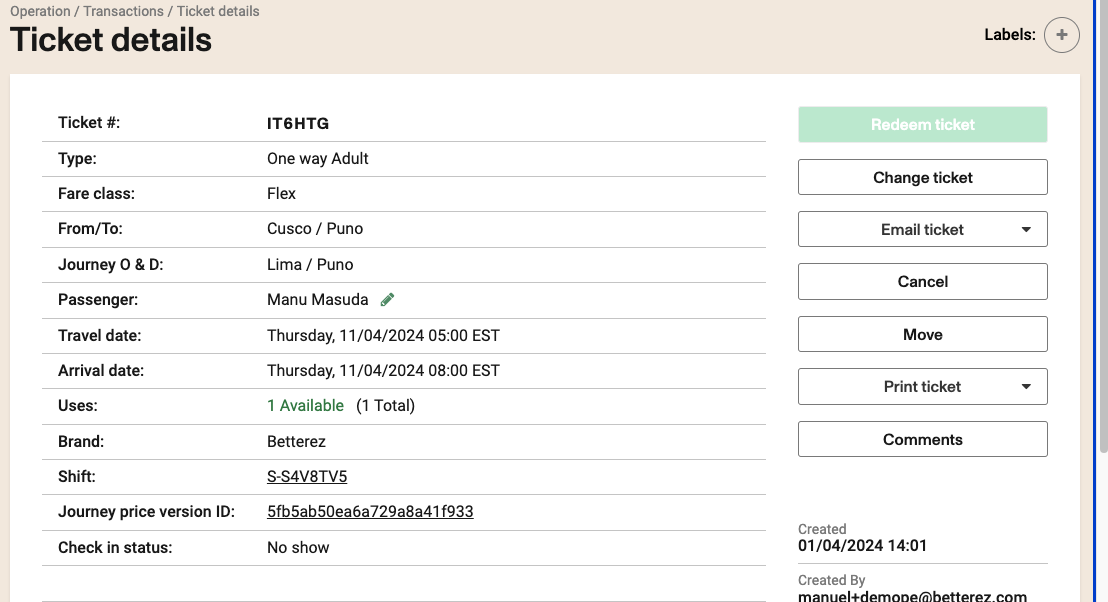
To "revive" the ticket, it needs to be changed to a different trip.
No show will affect current + future legs of a connecting trip. No show won’t affect past trips
no show tickets appear in the comments section as “tickets that were removed from this manifest”
On the ticket details, the link to the manifest will be disabled.
Ticket operation statuses
Some operations can add a "status" or "tag" to the ticket details page to be able to trace its operation history
- Moved
- MovedByIROPs
- Changed
Full list of possible ticket statuses
paid: Purchase is complete: payment cleared and the ticket is the active, sellable travel entitlement for that transaction (subject to product rules).
cancelled: The booking was voided through cancellation or a full cancel refund; the ticket is not valid for travel and is not an exchange placeholder.
changed: The original ticket was replaced by an exchange or change flow; this record marks the superseded ticket so it is not treated as the current valid journey.
waiting for payment: The sale exists but payment is not finalized yet. The ticket should not be treated as fully paid until the transaction completes.
payment expired: The allowed time to pay for a pending transaction ran out; the ticket on that order is no longer in a payable, active-purchase state.
imported: The ticket was brought in from an external or integrated source rather than created only through a standard in-system checkout.
movedByIROP: The original ticket was consumed by an IROP (irregular-operations) move to a new booking. The replacement is the new ticket.