Page summary
Make a purchase with Getnet
Making a test purchase with the Getnet provider, 'getnet_terminal' payment method
Go to /sales select a product to test a purchase and proceed to the shopping cart.
If you enable the payment method correctly you should see it in the payment selection combo box.
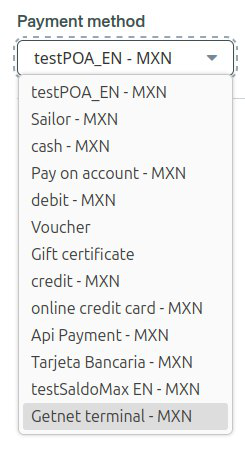
Select the payment method and click Add to add it to the shopping cart.
Click "Check out" and a dialog will open asking to continue the purchase processing in the terminal.
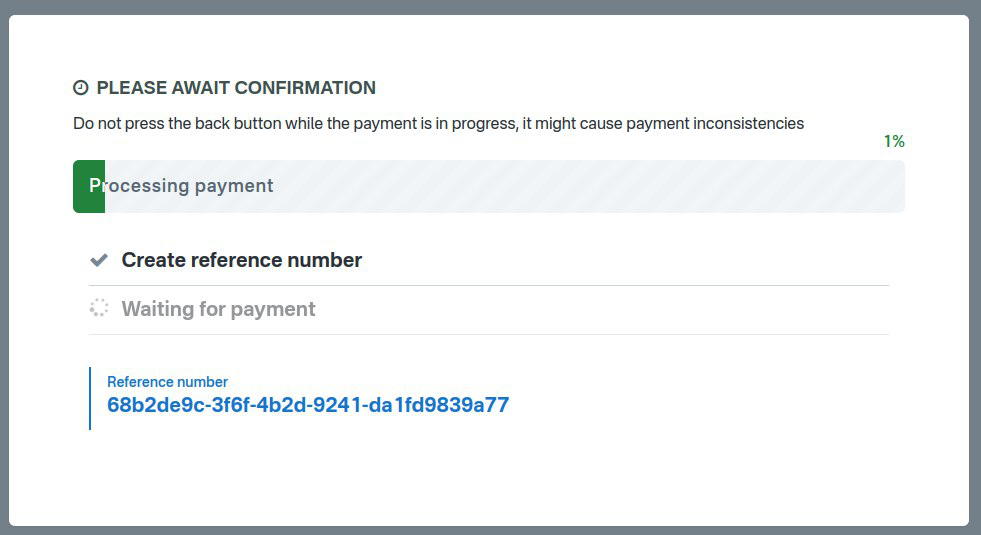
The getnet terminal will now take over and direct you or the customer on how to complete the transaction.
Once you "Accept" the amount the payment will be confirmed, processed and Betterez will issue the ticket.
Errors
These are some of the most common errors while trying to process a payment with Getnet.

This error indicates your computer has no Getnet's terminal associated. Remember you can associate it in Administration/Payment terminals

This error will show up if the terminal is no associated with the Getnet's license related to your shift location and operating company. Please communicate with your sales consultant to get the appropriate license for your terminal.

This error will show up when the customer or the cashier cancels the payment at the Getnet terminal. In this case you can start the process again.


These are other errors generated by getnet's terminal. These errors are also shown in terminal's screen.