Page summary
Payment Providers: Getnet Terminal - Set Up
Setting up the Terminal payment provider, 'getnet_terminal' payment method
Set your Getnet credentials
Please communicate with your sales consultant to get a secret key. Under Administration -> Payments you can find getnet_terminal payment method. There you can set the default secret key under Parameters section.
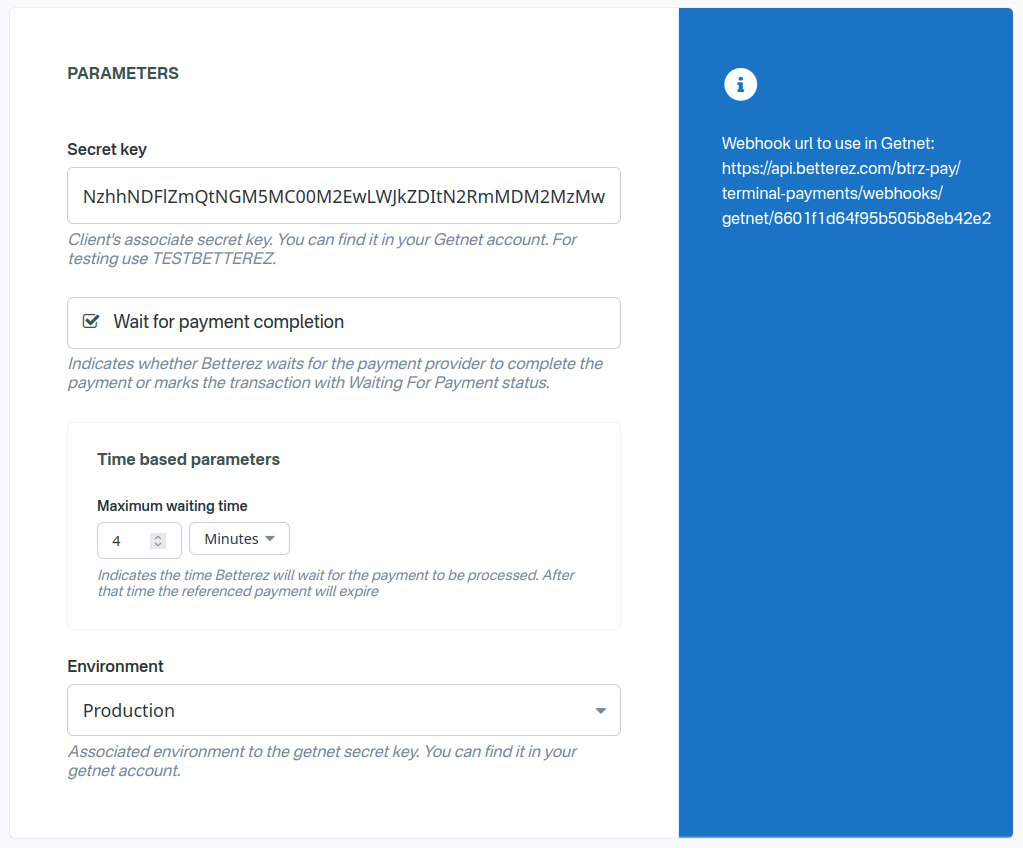
Also, you can configure a secret key for a combination of location and operating company.
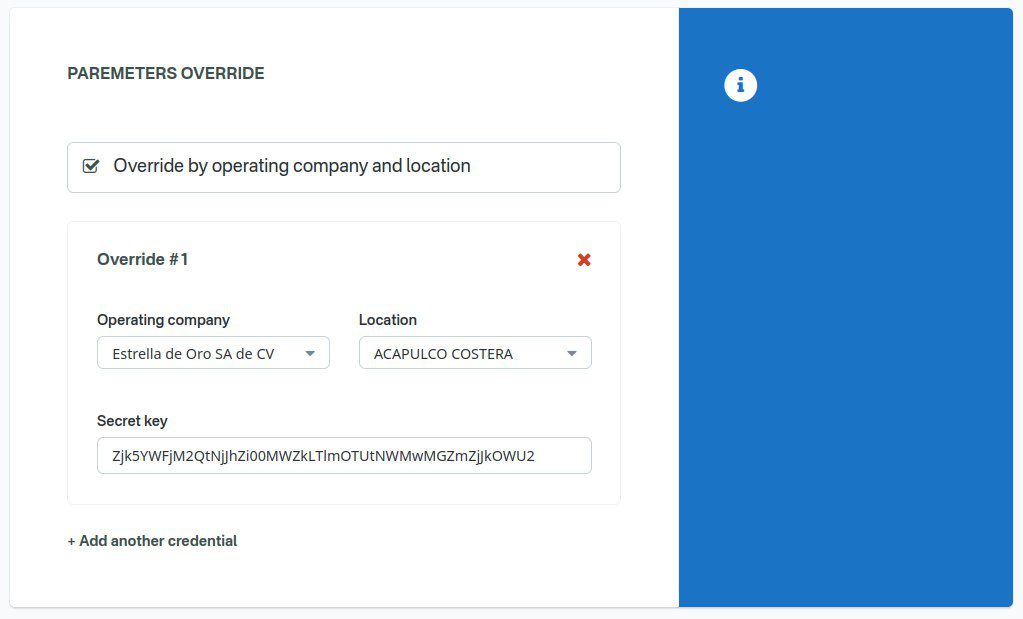
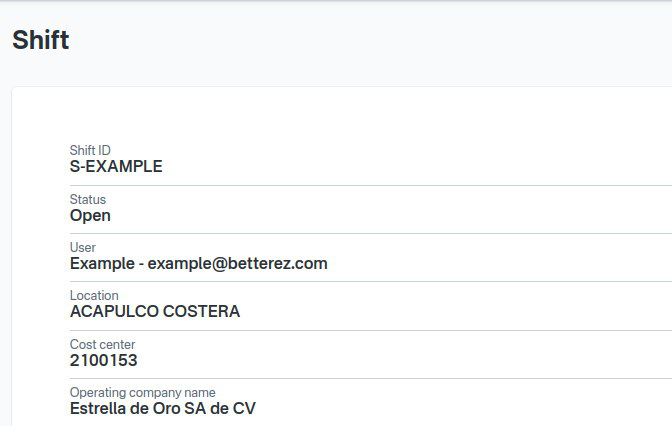
Those secret keys are used instead of the default if the current logged in user's shift has the same location and operating company. You can check your current shift info in User -> My shift
Set up Getnet terminal
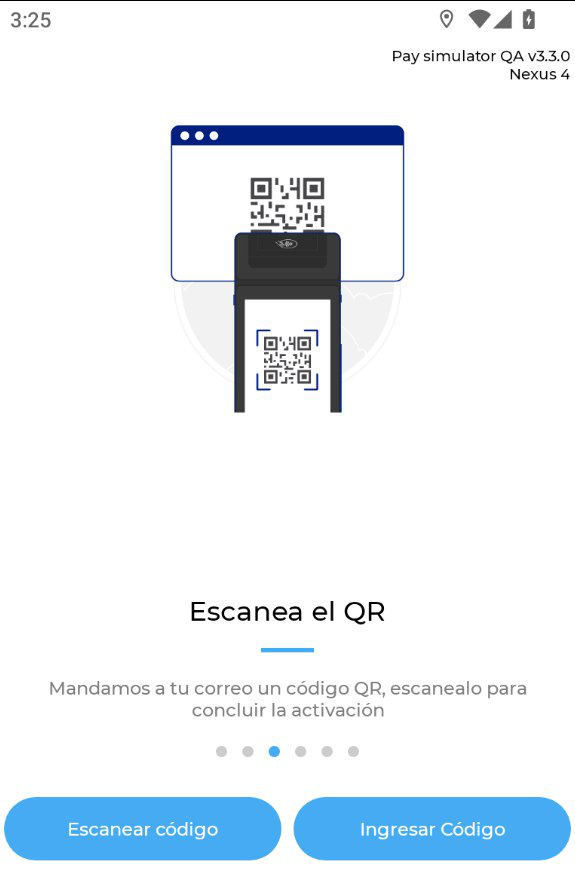
The same secret key (license) should be used in the terminal. When you open it for the first time, it ask you to set it. You can use use the QR or manually enter the license key.
Setting the Getnet terminal payment type
Navigate to admin>payments scroll to find the getnet_terminal payment type and click in the name. You can find more information about the 'getnet_terminal' method in the sales flow article

Once on the Edit payment method screen the user will be required to configure the following fields:
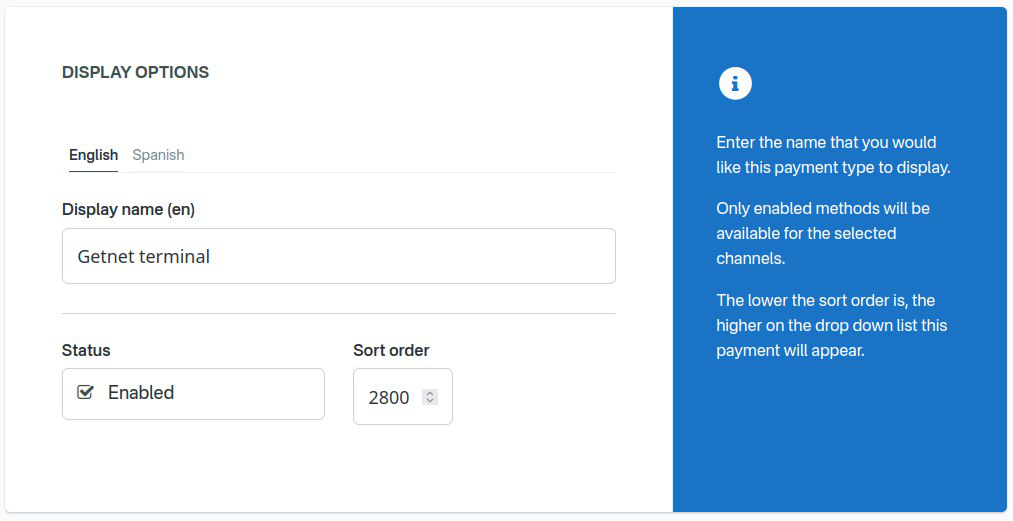
Display Name The name you would like displayed in the shopping cart list of payment methods.
Enabled If checked, this payment method will be available for those sales flow channels it'll be configured.
Sort Order The higher the number, the lower in the list of payment methods this payment method will appear.
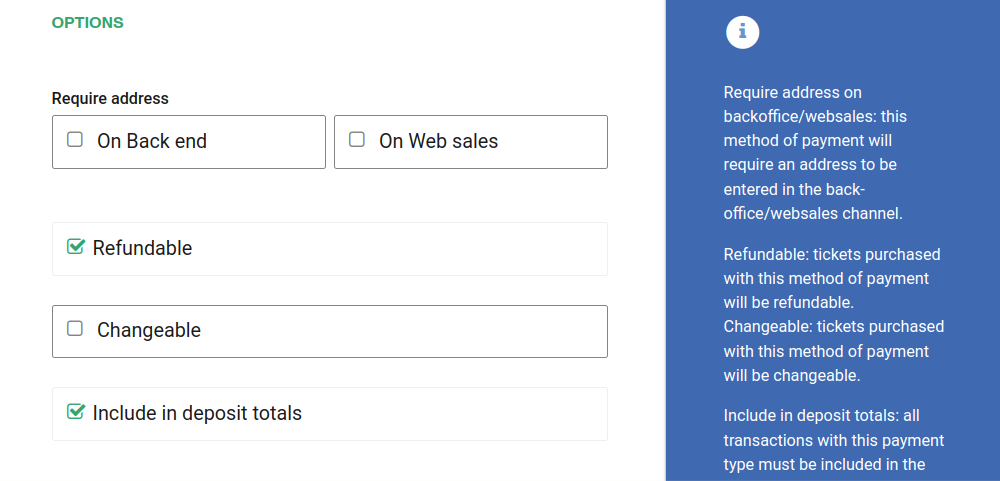
Require address on Back end If checked, this payment method will require the address of the customer in the back end sales flow.
Require address on Web sales If checked, this payment method will require the address of the customer in the web sales sales flow.
Refundable and Changeable If checked, tickets purchased with this method of payment will be refundabled or changeable.
Include in the deposit totals If checked, this payment type will have documentation that is necessary to include with seller shift deposit before closing a shift.
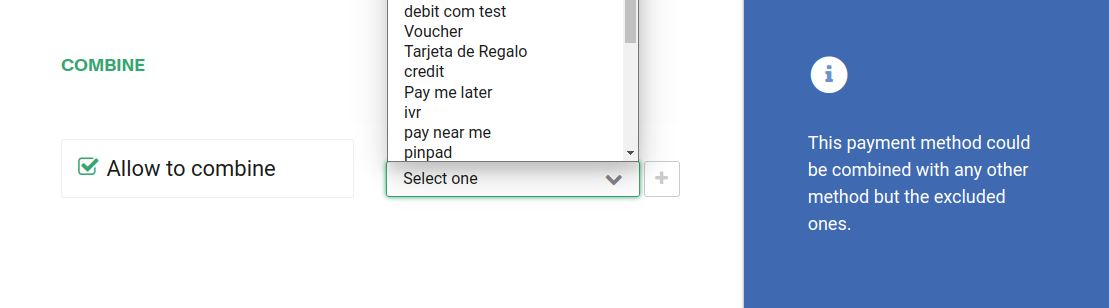
If Allow to combine is checked, the payment method can be combined with any other payment method on the payment form. You can also set a list of payments which can't be part of that combination:
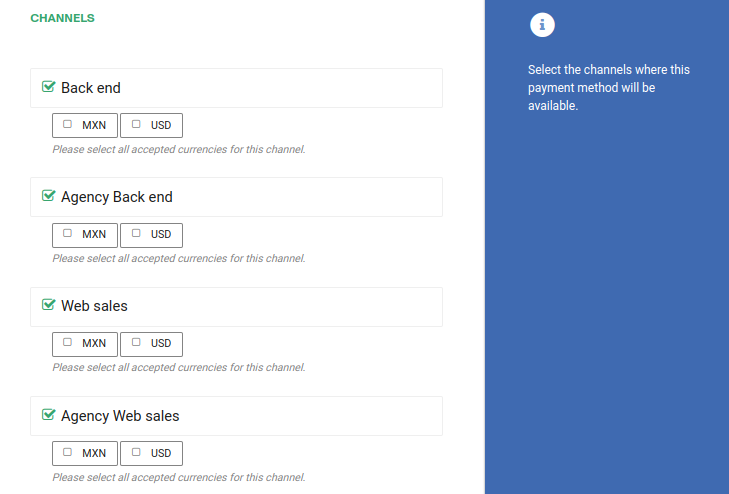
Make sure to select only the Back end channel since this method requires a Getnet terminal to be installed and it will not work in websales.
You should also configured the parameters for the payment method to allow it to connect to the Getnet gateway and receive webhooks from it.
In the Secret key field you should enter the value saved before, described in the set getnet credentials section
Make sure to check the Wait for payment completion setting, the flow with Getnet will not work properly if this setting is off.
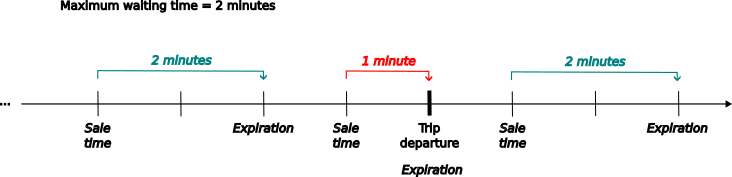
Maximum waiting time: Indicates the time Betterez will wait for the payment to be processed. After that time the referenced payment will expire. If the calculed expiration time exceeds the trip departure, then the payment will expire in the trip departure time. If the sale time exceeds trip departure time, then the payment will expire from that moment plus maximum waiting time. This parameter override the default behaviour. The image below show three differents scenarios: before the trip departure time, near trip departure time and after trip departure time.
NOTE: Negative values have not effects.
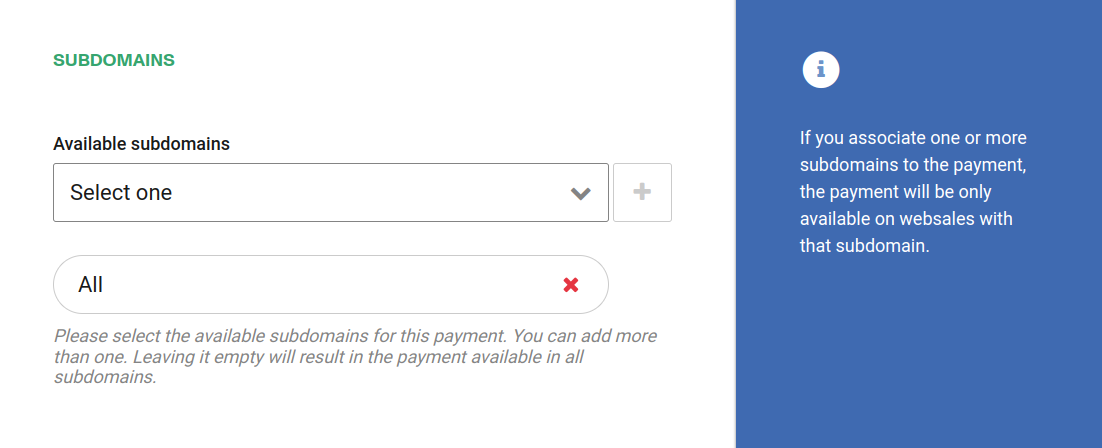
If your account has custom subdomains you can also configure the domains this payment method will be available for.
Click Save to save your configuration settings.