Page summary
- 1: Trip search page
- a.1 One-way Trips
- a.2 Round Trips
- a.3 Open Return Trips
- b. Trip Results
- b.1 Trip Filters and Sorting
- b.2 Trip Information
- b.3 Schedule Selection
- b.4 Fare Class Selection
- b.5 Seat Selection
- Seat Validation
- Seat Concurrency
- b.6 Standing Passengers
- b.7 Manual Fees
- b.8 Airport Stations
- 2: Passengers Page
- 3: Checkout
- b. Payment Information
- C. Customer Information
Simplified Sales Flow
1: Trip search page
To begin the sales flow, navigate to Sales at the top of your screen:

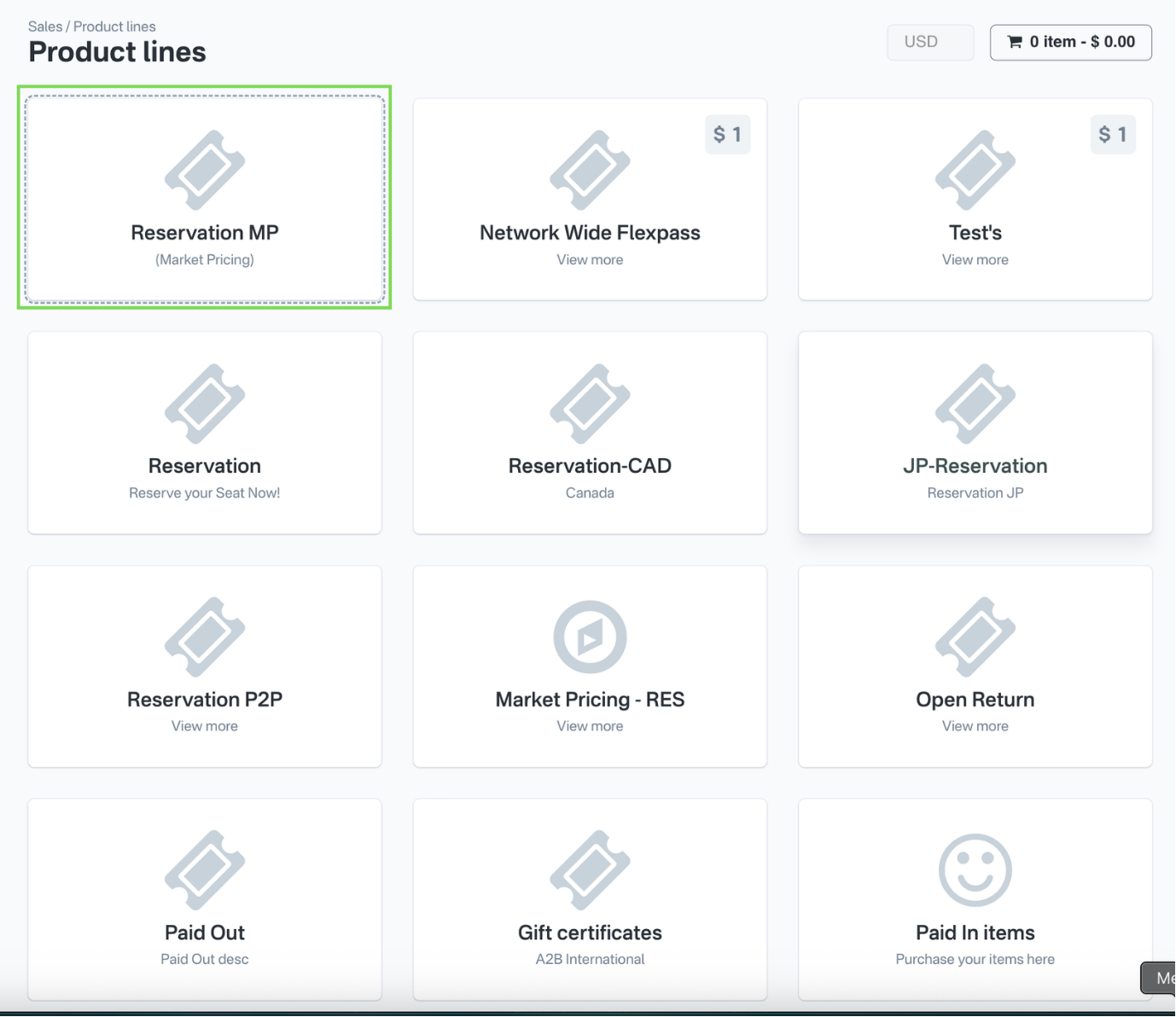
Then, select the product you would like to sell:
a. Trip Parameters
You will be presented with a section where you can define the details of the reservation:

Here, you can select:
1. Origin and Destination:
If the Head of Station feature is enabled, you must first select the head of station, and then choose the station from the filtered list. For more information, refer to the documentation on Creating station groups.
2. Departure: Departure trip date
3. Return: Return trip date
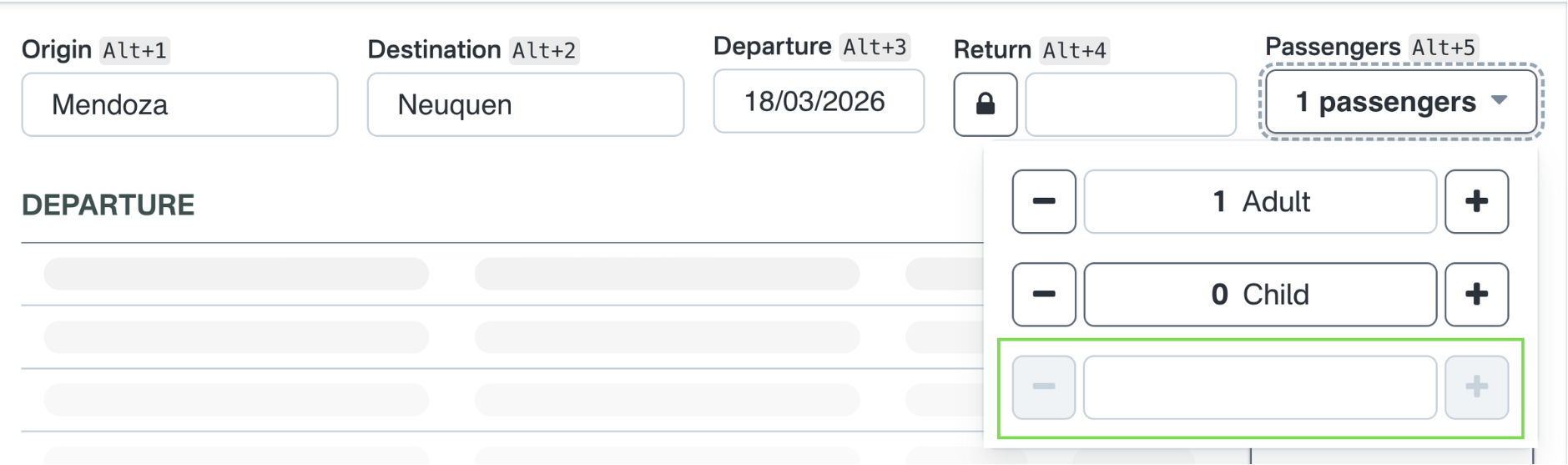
4. Passengers: When clicking on the Passengers section, a dropdown will appear showing the configured fare types. You can select the quantity for each fare type to proceed with the trip search.
If the account has fare types with the “Display on combo” option enabled, a search box will appear. You can type the fare type name and use the “+” and “–” buttons to adjust quantities.
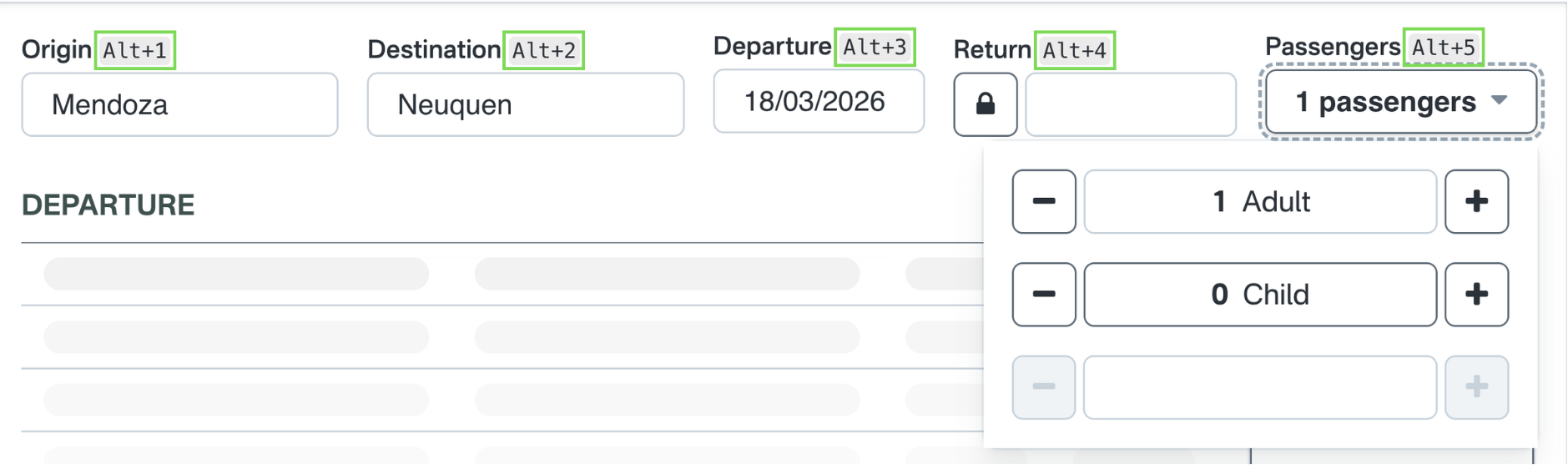
The sales flow supports keyboard shortcuts to help you navigate more efficiently. Use the shortcuts displayed on each button to speed up the process:
a.1 One-way Trips
Select:
- Origin
- Destination
- Departure
- Passengers
This will generate a single ticket from the origin to the destination.

a.2 Round Trips
Select:
- Origin
- Destination
- Departure
- Return
- Passengers
This will generate two tickets: one outbound and one return.

a.3 Open Return Trips
Select:
- Origin
- Destination
- Departure
- Return → Activate the lock icon (no date required)
- Passengers
This will generate an outbound ticket and a reedemable item. Please, follow this link for more information on Open Return Tickets.

b. Trip Results
Once all parameters are selected, click “Find trips” or use the shortcut Alt + Enter:
b.1 Trip Filters and Sorting
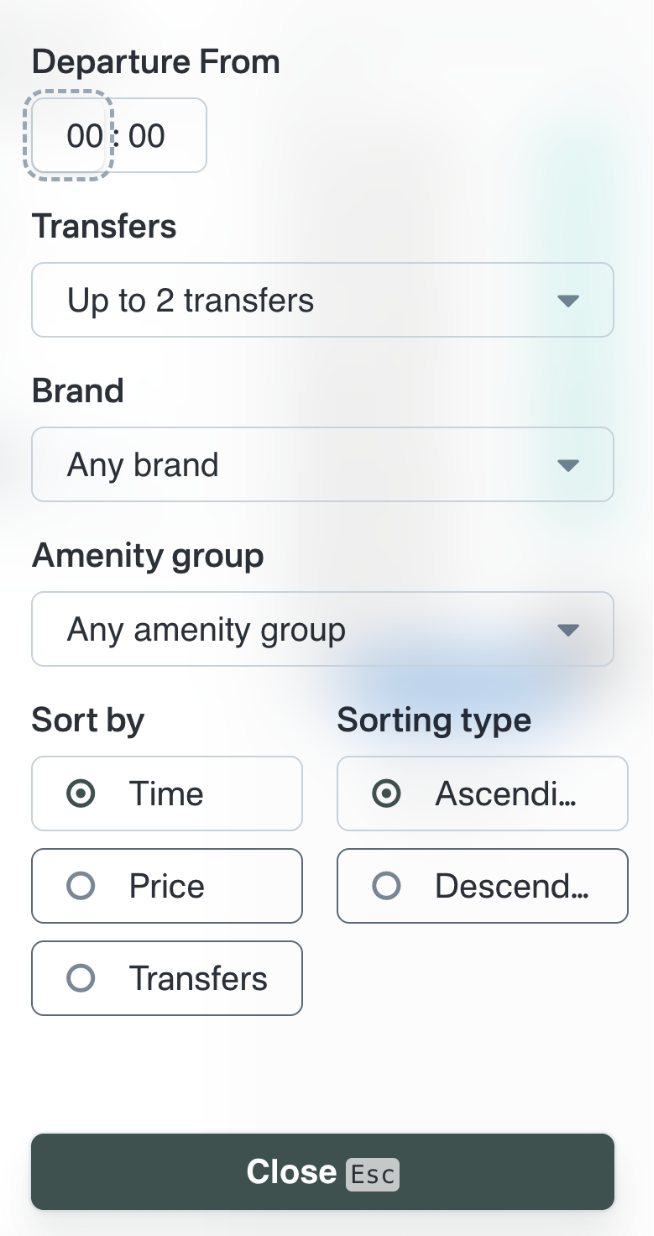
Click on the highlighted buttons or use "Alt + 6" to open the filters section.
You can filter trips by:
- Departure time
- Number of transfers
- Brand
- Amenity group
You can also sort results by:
- Time
- Price
- Transfers
Sorting can be applied in ascending or descending order.
b.2 Trip Information
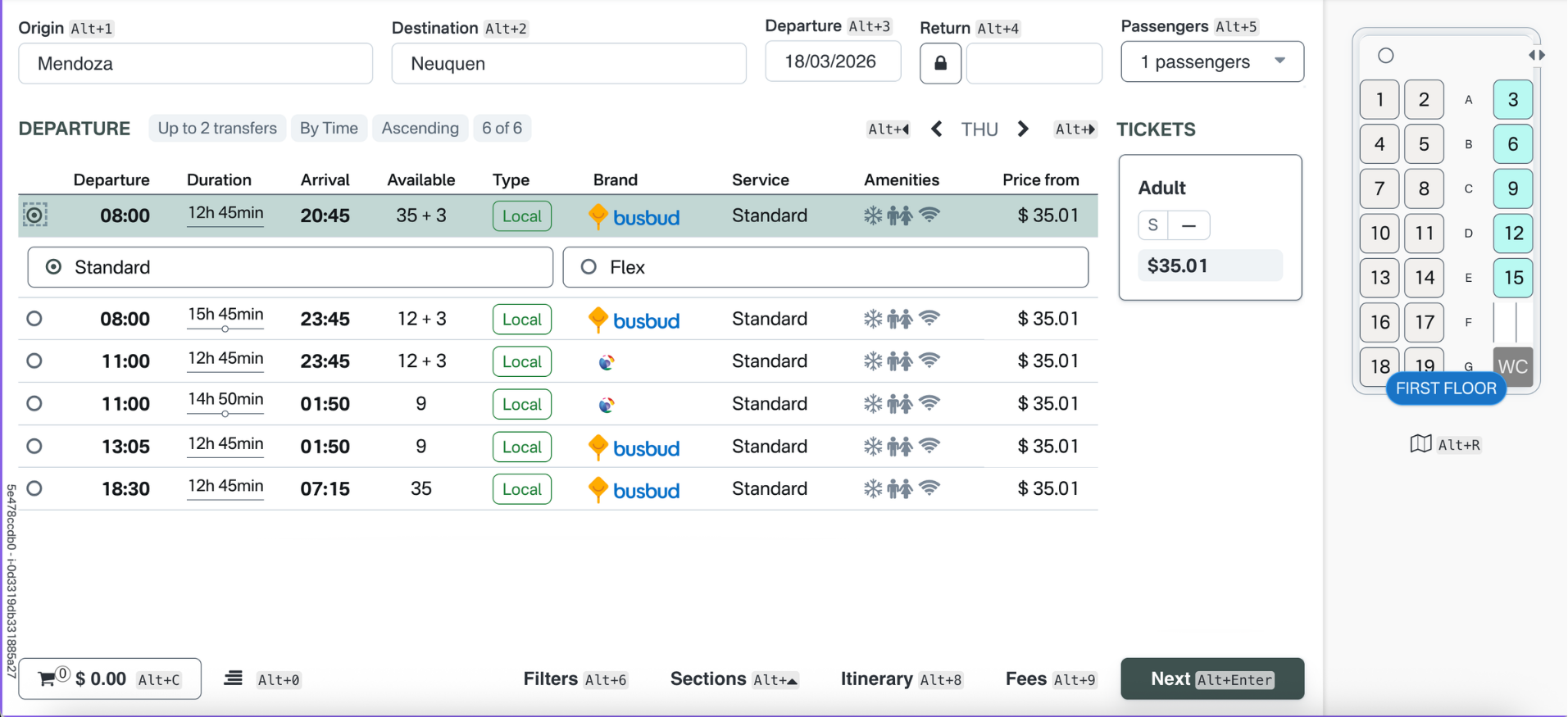
Each trip result displays:
- Departure time
- Duration: Including trips, subtrips or waiting times.
- Arrival time
- Availability: If format = N1 + N2 → N2 represents standing passengers
- Type: “Local” indicates that the departure trip originates from the first station defined in the schedule. In contrast, “Through” signifies that the trip includes intermediate stations along the route, meaning the departure does not occur at the initial station but at a subsequent stop within the schedule.
- Brand
- Service
- Amenities
- Price from
b.3 Schedule Selection
Select the desired schedule from the available options. Once selected, prices, seats, and fares will update accordingly.
b.4 Fare Class Selection
After selecting a trip, the fare class section will appear below the selected ticket.

b.5 Seat Selection
Seats must be selected for each trip, or for each subtrip if applicable. The system will display the configured seat map, automatically validating the origin and destination as well as reflecting real-time seat availability based on current bookings. Users can then proceed to select their preferred seat based on its location (row and column, and level if applicable). If multiple sections are available, a “Sections” option will appear at the bottom of the interface, allowing users to navigate between them.
Once selected, the seat will be displayed on the fare type card.
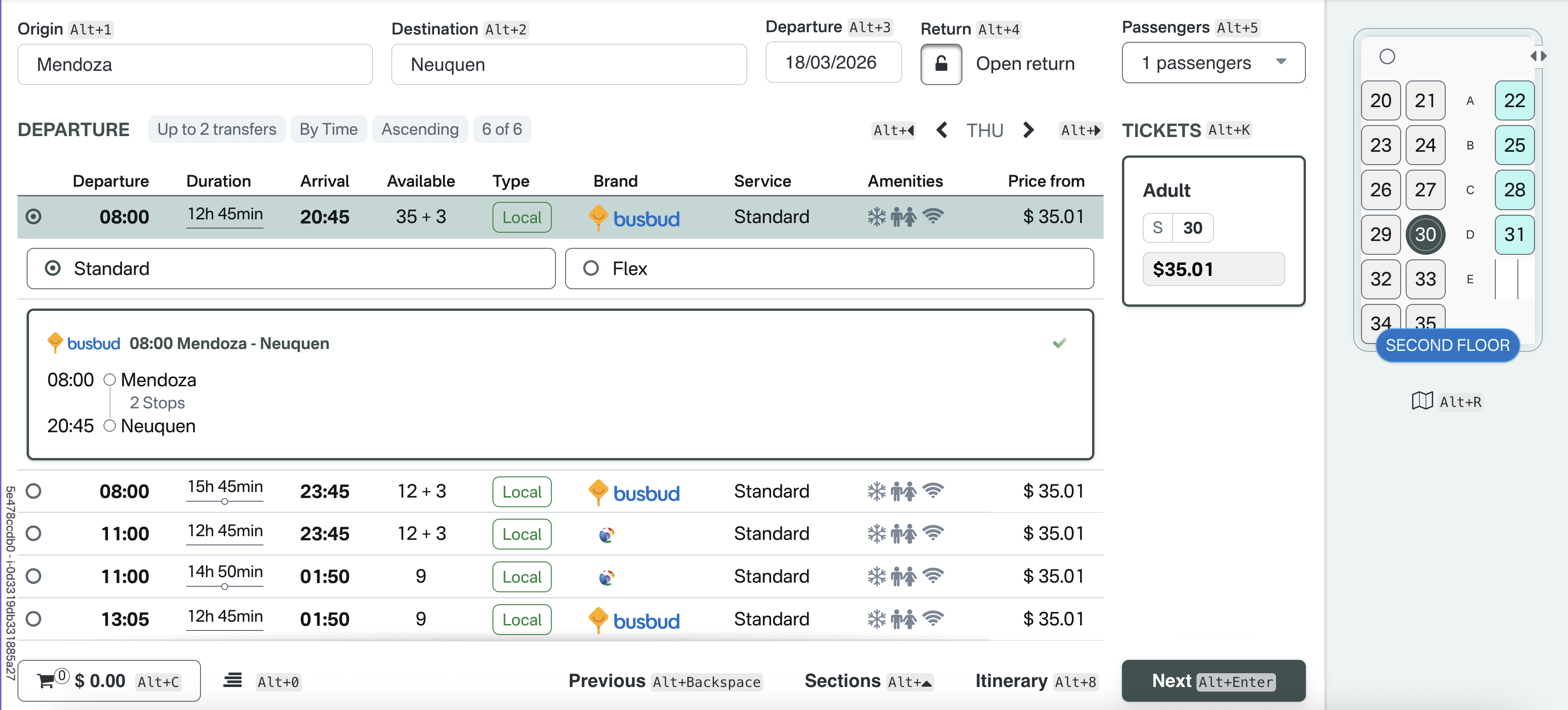
A trip summary will also be shown under the selected schedule.
Seat Validation
If you attempt to proceed without selecting seats, the system will display an error:

Seat Concurrency
Seats are temporarily reserved when the user clicks “Next.” In cases where multiple users select the same seats, only the first user to proceed will be able to continue with the booking. If the selected seats become unavailable at any point during the process, the system will display an error message notifying the user.

b.6 Standing Passengers
There are two scenarios:
- If a “Standing” option is visible, tickets can be sold even if seats are still available
- If not visible, standing tickets are only available after all seats are sold
For more details on the standing passenger feature, refer to the support article.
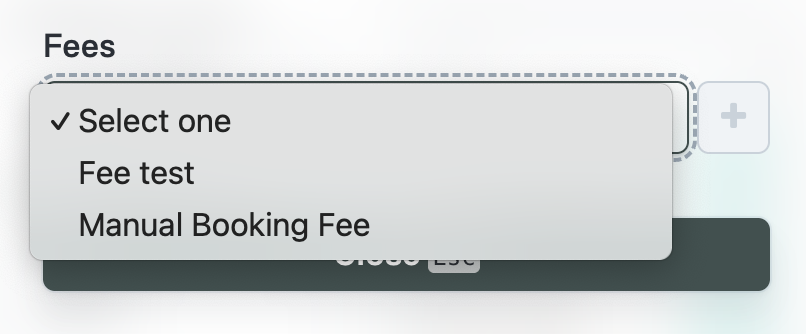
b.7 Manual Fees
If enabled, a “Fee” button will appear at the bottom of the screen, allowing users to add manual fees that will be applied later during the checkout process.
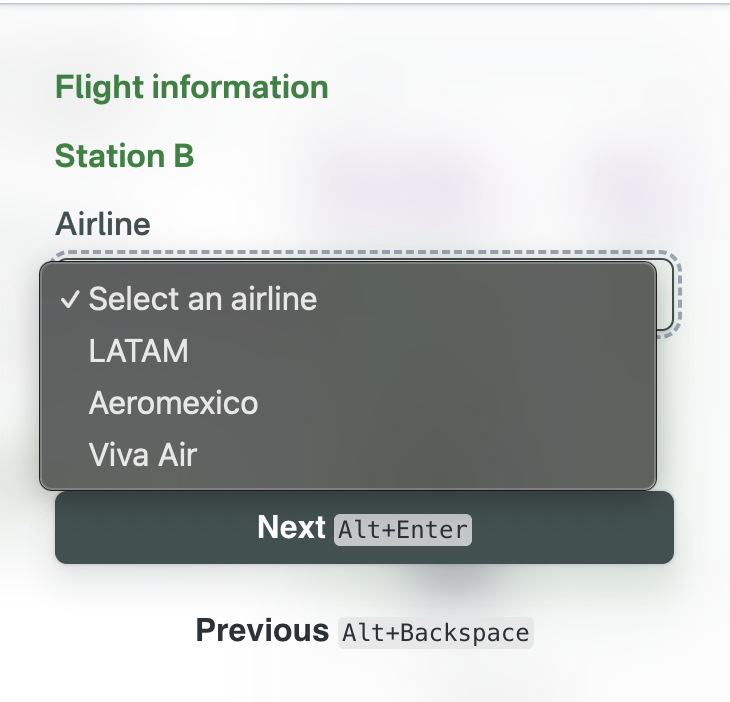
b.8 Airport Stations
If the origin or destination station is an airport, after completing the trip search the user will be directed to a screen where they must select the terminal and the airline. This information allows the system to organize and sort tickets by terminal for the driver.
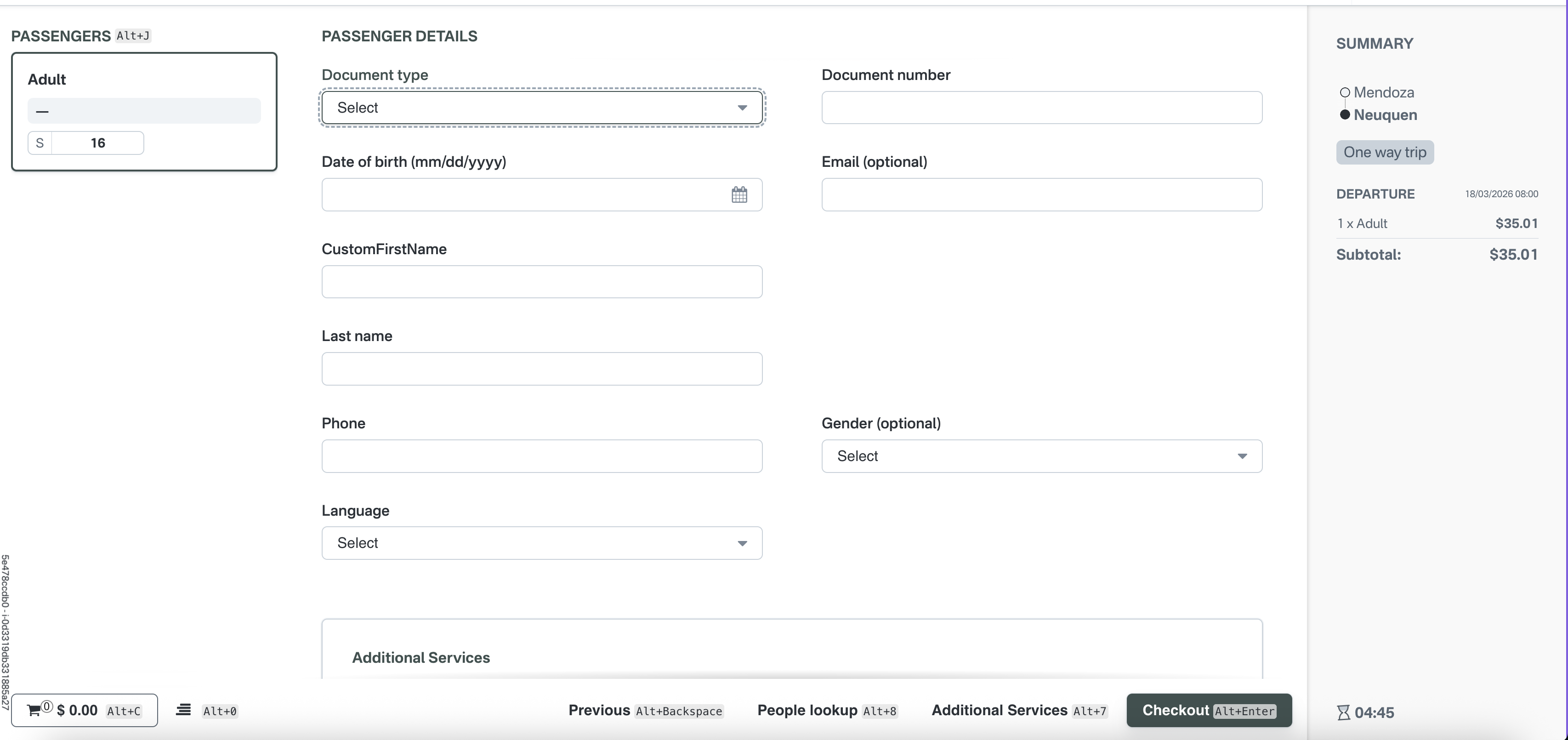
2: Passengers Page
a. Passenger Details
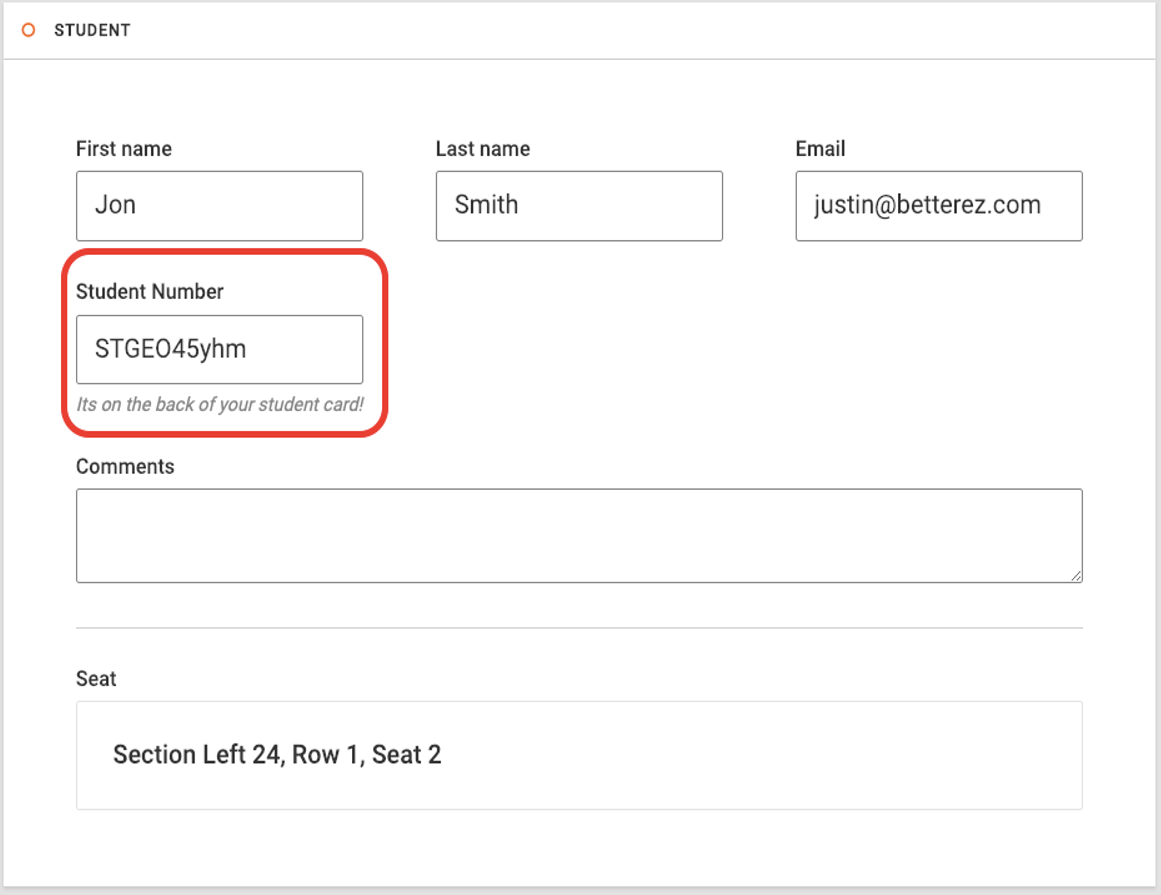
Passenger information must be entered in this section, which can be customized using dynamic forms to capture the required details. For more information on how to configure these forms, refer to the Dynamic Forms Support Article.
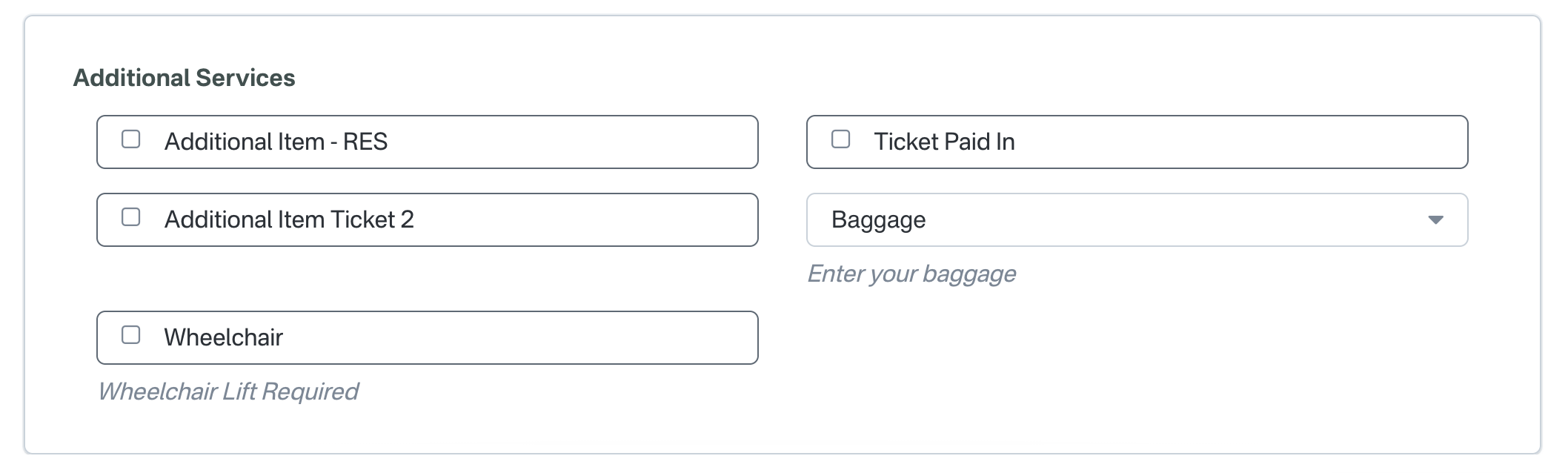
b. Add Special Service Requests (SSR's)
Special Service Requests can be added in this step by selecting from the SSR options configured for the trip. These options will be displayed within the interface
c. Fare Type Validation
To protect customer information, a mask can be configured to hide specific characters from user input. The rules for implementing this masking must follow standard Regex conventions. For more details, please refer to the fare type configuration article.
d. Copy information to multiple customers
After entering passenger data, the information can be copied to other passengers using the available option.
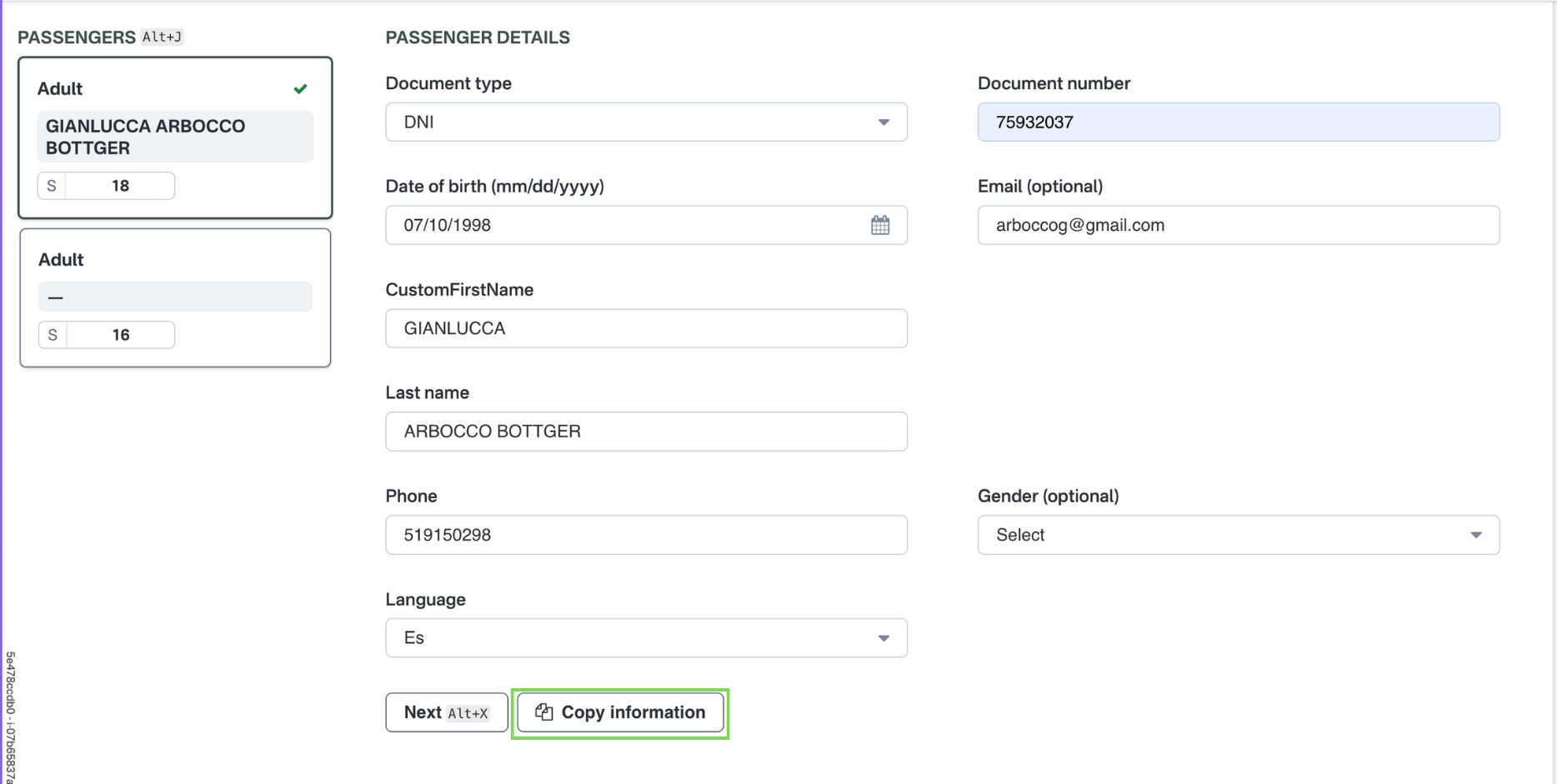
Click “Accept” to confirm the copied details. Once all passenger information has been completed, proceed by clicking “Checkout” to continue with the booking process.
3: Checkout
The checkout screen is divided into three sections displayed on the same page: the Shopping Cart, Payment Information, and Customer details
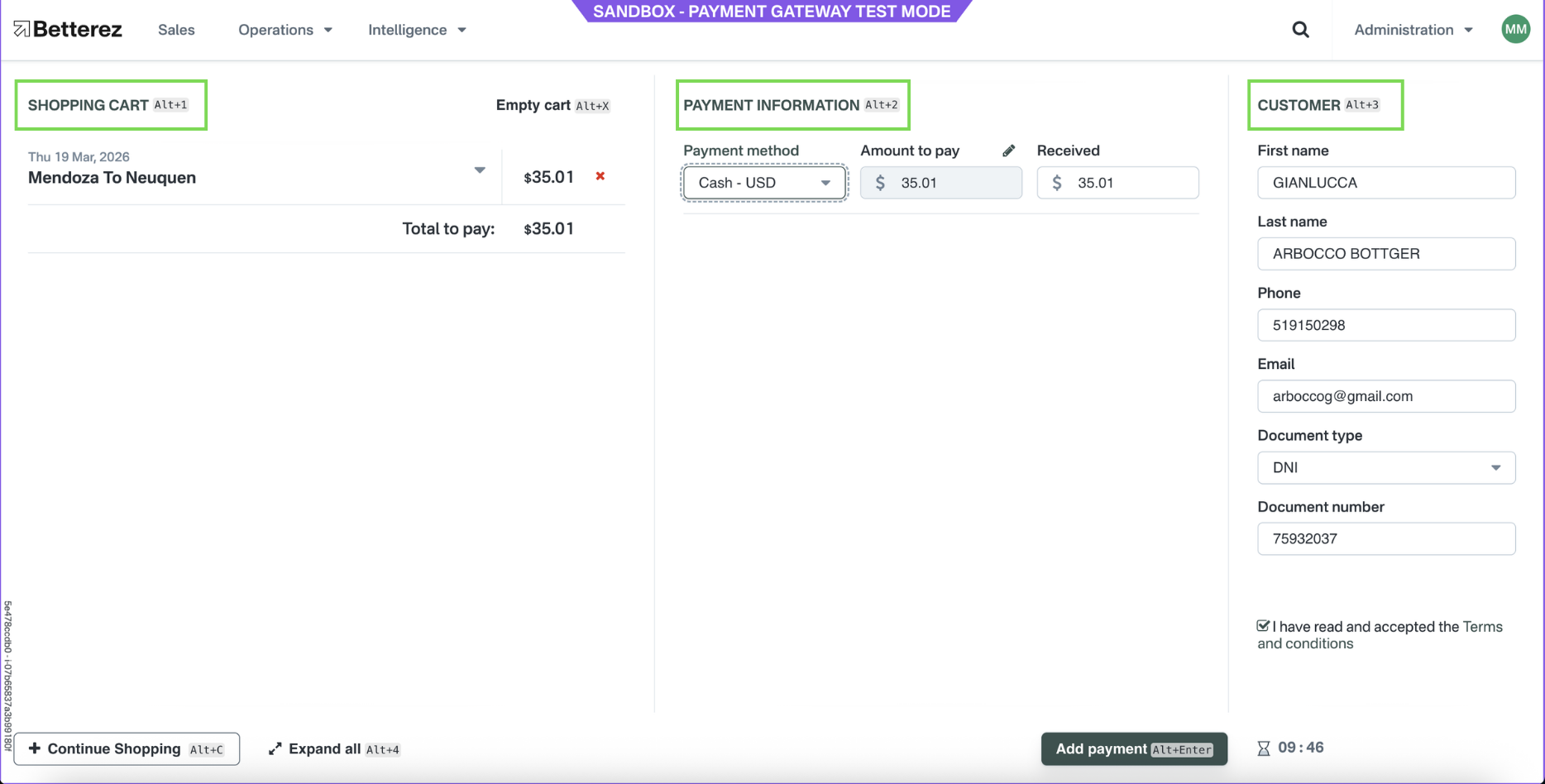
a. Shopping Cart
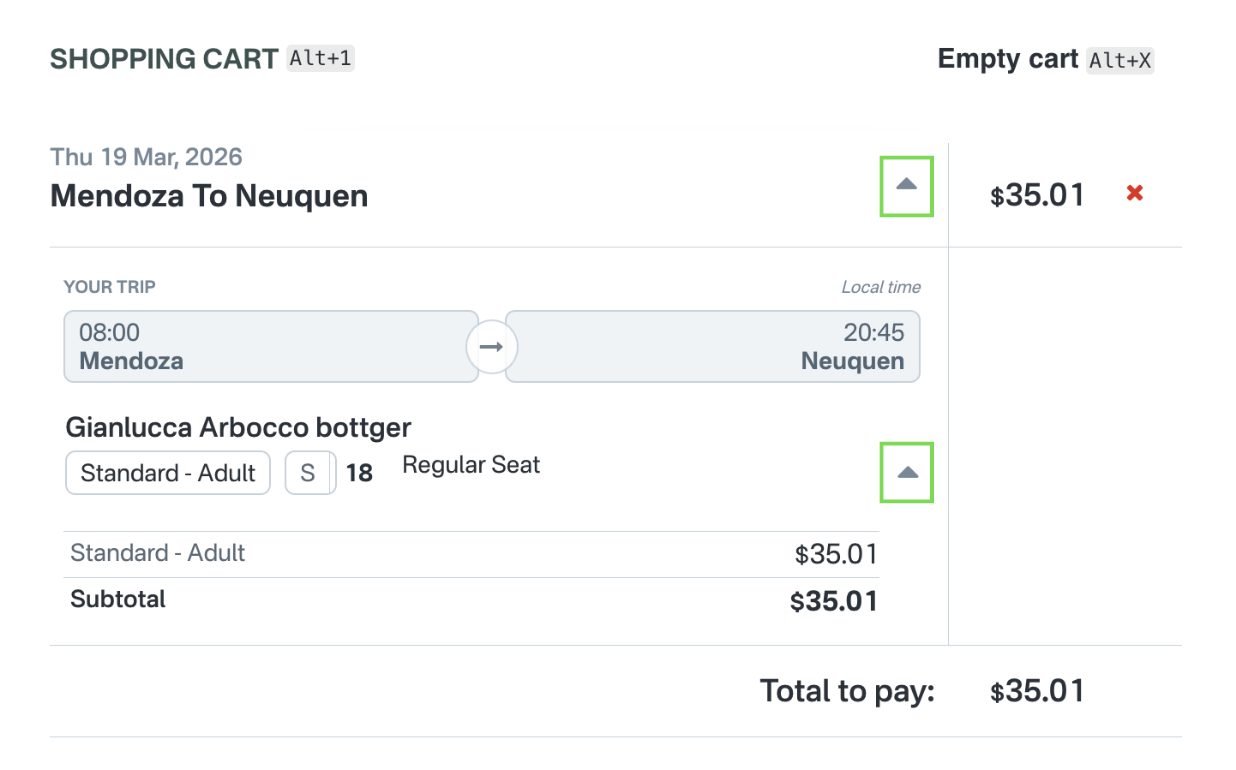
Displays a summary of the trip:
- Departure date and time
- Origin and destination
- Passenger details
- Fare class and type
- Seat selection
- Price
- Fees (if applicable)
- Taxes (if applicable)
- Passenger information
b. Payment Information
Users must select one or more payment methods from the available options
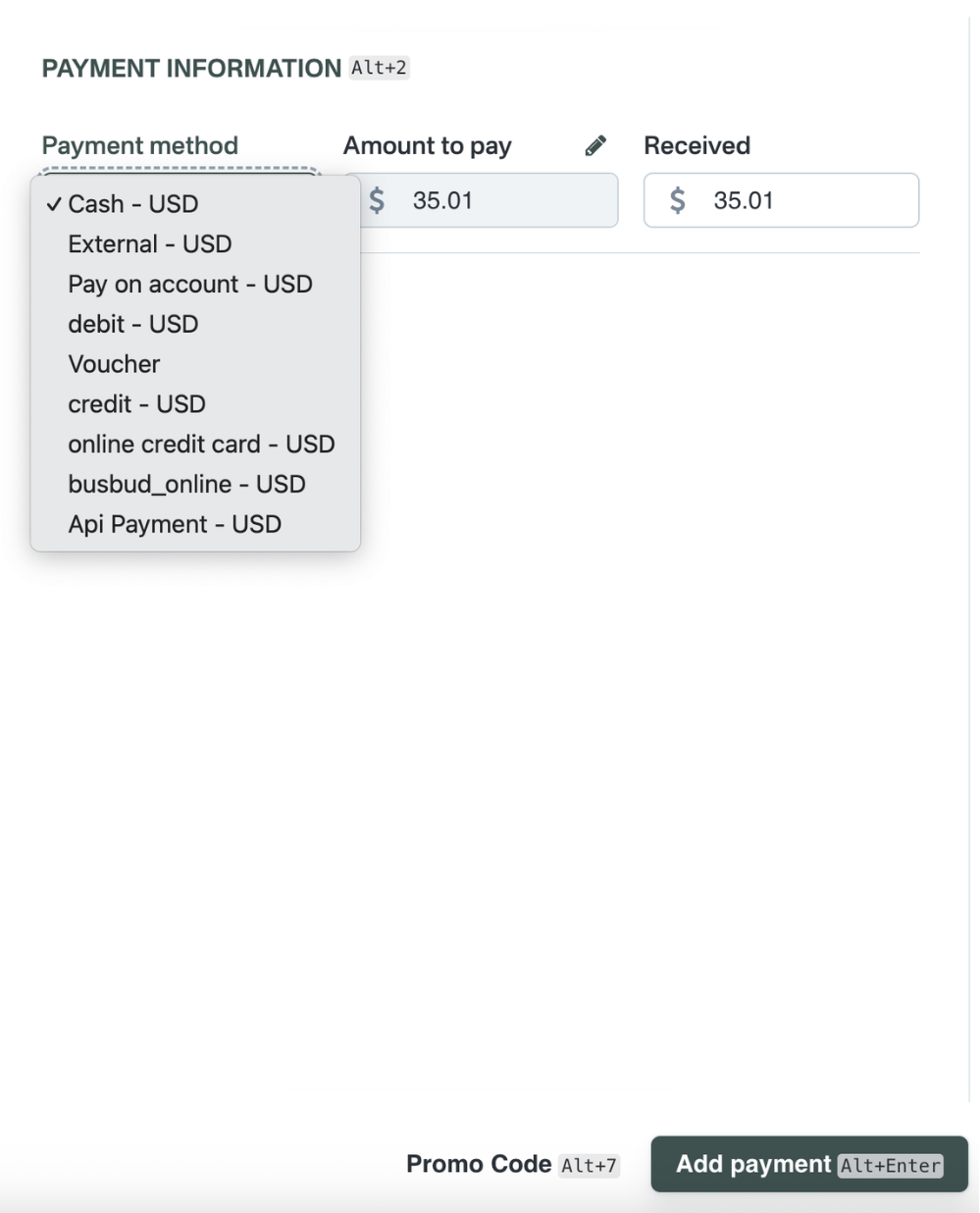
Multiple payments may be allowed depending on the configuration, and certain payment methods may require additional input fields to complete the transaction.
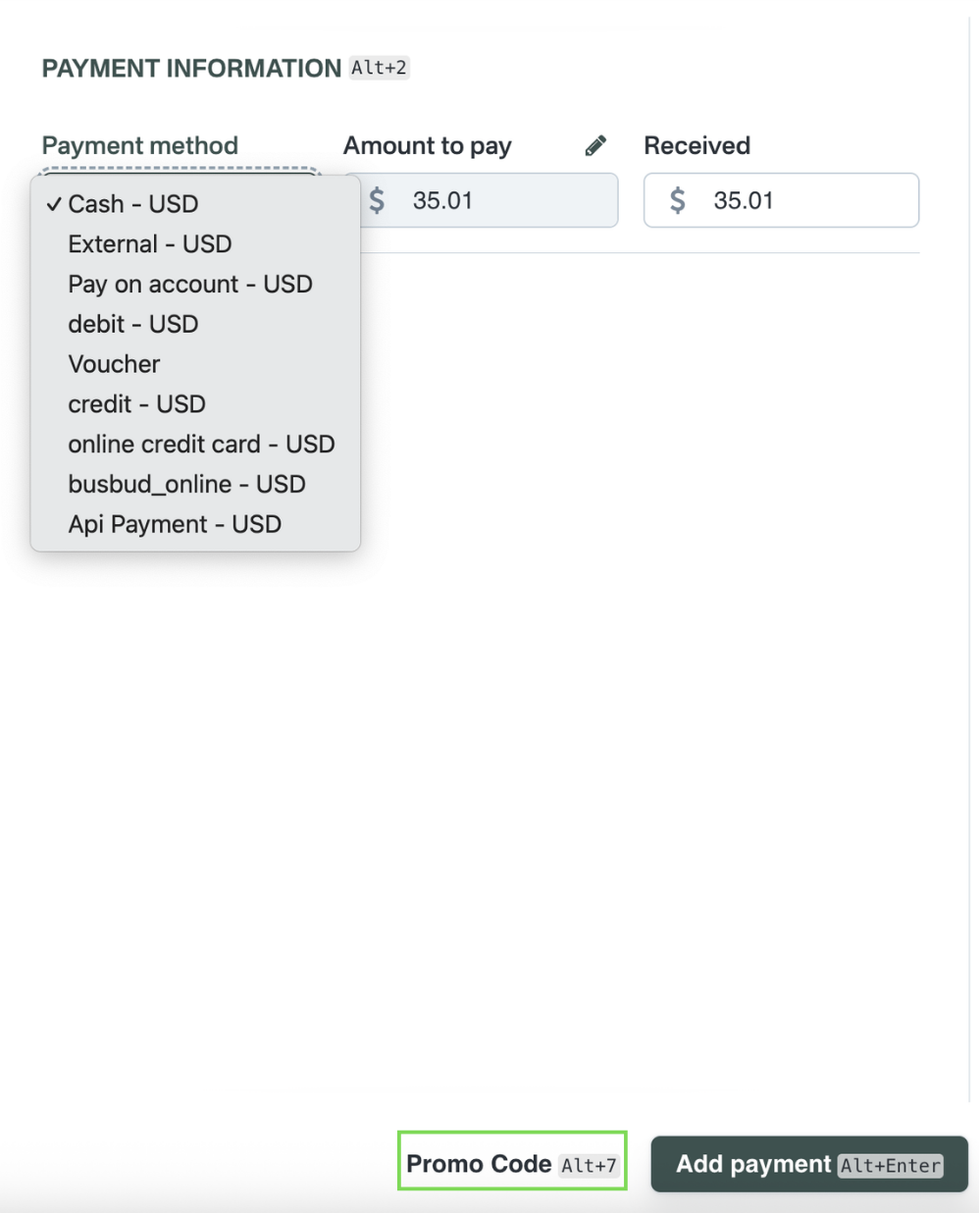
Promo codes can be applied using the “Promo” button. Please note that promo codes must be added before selecting or adding any payment methods.
C. Customer Information
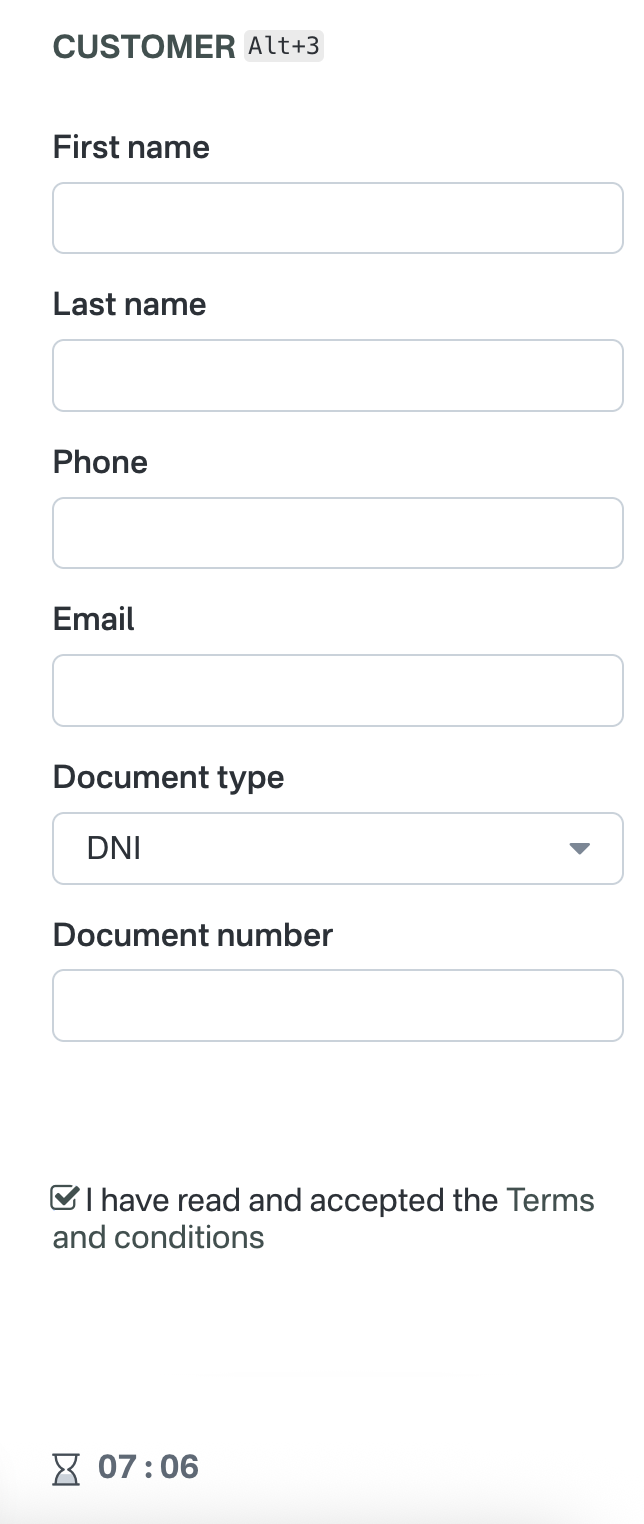
Customer information is automatically pre-filled using the first passenger’s data, but it can be edited if needed in case the customer is different from the passenger